
Navigation
Yuko Dashboard → Reviews → Widgets → Q&A Collection Form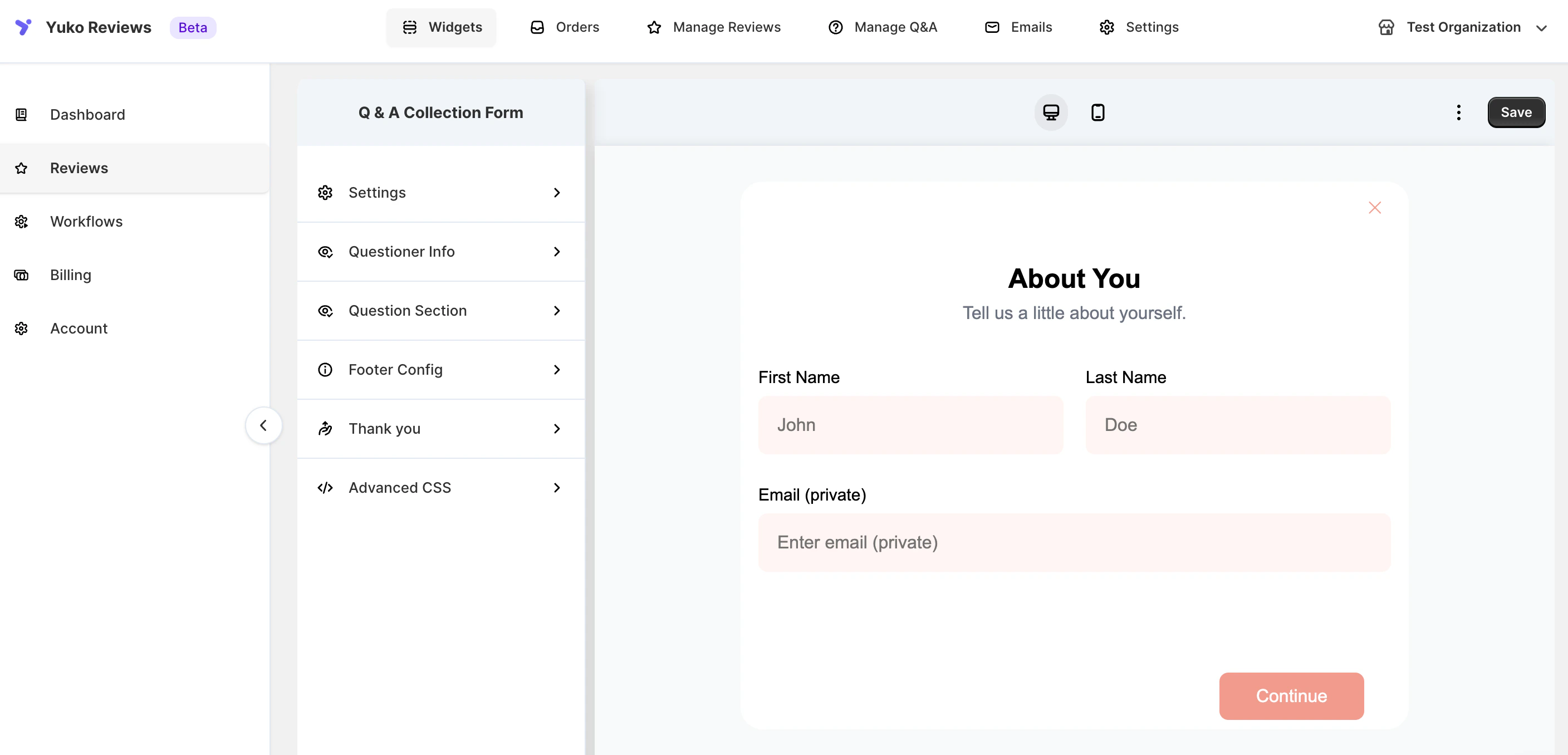
Overview
The Q&A Collection Form is what customers use to ask questions about your store.It appears as a simple section or button below the product description — fully customizable to match your theme and tone.
Form Structure Overview
The Q&A form is divided into six configuration sections:1. Settings
General appearance and functional controls for the form. You can:- Enable/disable the form
- Choose display style (inline section or button trigger)
- Configure visibility across product pages
- Adjust spacing and alignment
Available UI Customizations (Dialog & Container)
2. Questioner Info
Capture essential customer details to ensure valid submissions. Fields include:- First Name
- Last Name
- Email (kept private)
- Edit field labels
- Add placeholder text
- Choose which fields are required
Customization Options
3. Question Section
Controls how customers type and submit their question.You can customize:
- Field label → e.g., Ask a Question
- Description → e.g., Have a question about this product? We’re here to help!
- Placeholder → e.g., What would you like to know?
- Character limits
- Validation rules
- Optional help text
Configurable Fields
4. Footer Config
Configure how the footer of the form looks. You can:- Add disclaimer text
- Adjust spacing
- Show or hide “Powered by Yuko”
- Add legal notices or guidance
Footer Button Text Options
5. Thank You
Set the message displayed after successful submission. You can:- Customize confirmation text (e.g., “Thanks! We’ll get back to you soon.”)
- Add next-step instructions
- Include optional branding elements
You can personalize:
This message reassures customers and sets expectations clearly.
6. Advanced CSS
For full design control. You can embed CSS to:- Re-style form layout
- Adjust typography
- Modify button styles
- Support dark/light themes
- Override theme-specific limits
Form Preview
The form begins with an “About You” section where customers provide their details:- First Name
- Last Name
- Email (private and never published)
Customization Options
You can tailor the Q&A form experience with the following options:- Customize labels, placeholder text, and helper descriptions
- Match color schemes, typography, and button styles to your store theme
- Preview the form live using the desktop/mobile toggle
- Save changes to apply instantly across all product pages