
What Are Product Groups?
Product Groups allow you to:- Group multiple products together
- Apply review-related logic at scale
- Manage large catalogs more efficiently
- Static groups (manual product selection)
- Dynamic groups (automatic product assignment)
Enable or Disable Product Groups
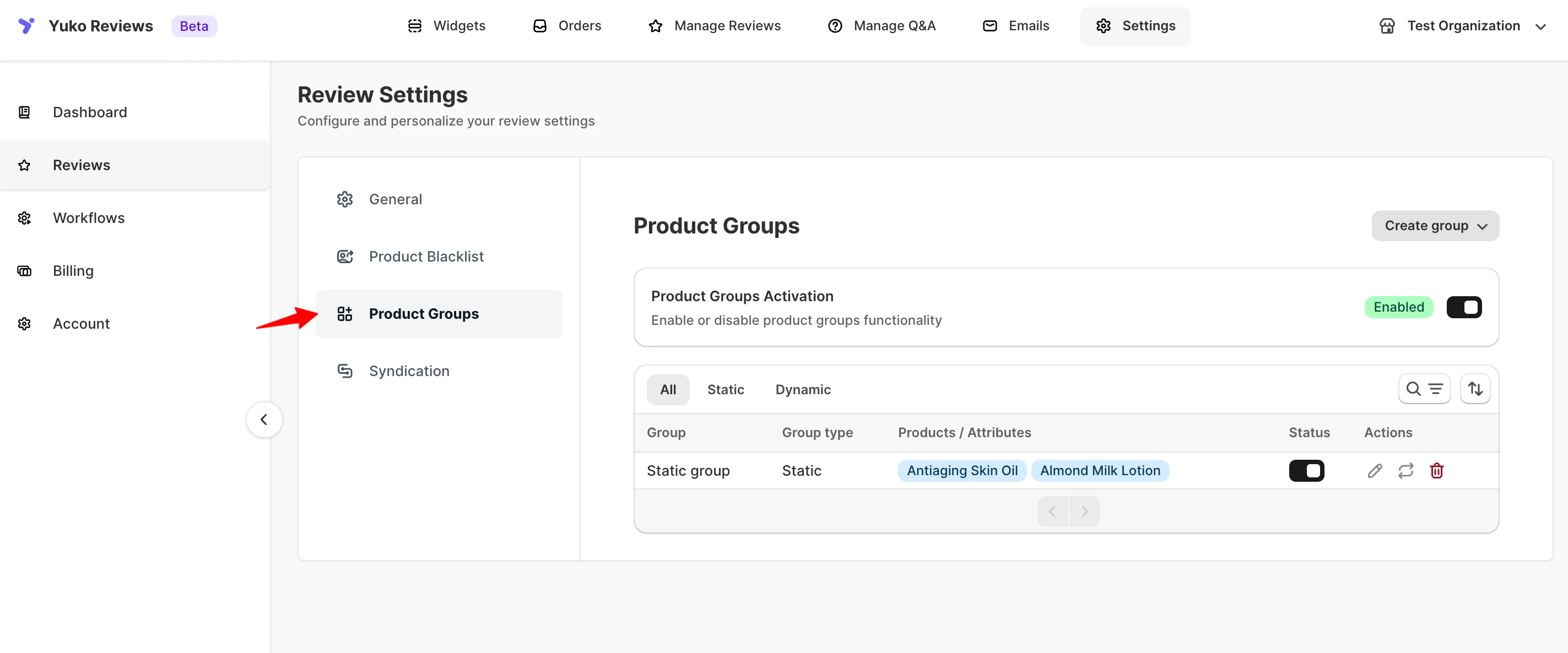
Before creating groups, you must enable the Product Groups feature.To enable Product Groups:
- Go to Settings → Reviews → Product Groups
- Toggle Product Groups Activation ON
Disabling Product Groups does not delete existing groups but stops them from being applied.
Create a Product Group
Click Create Group in the top-right corner to add a new product group. You can choose between Static Group and Dynamic Group.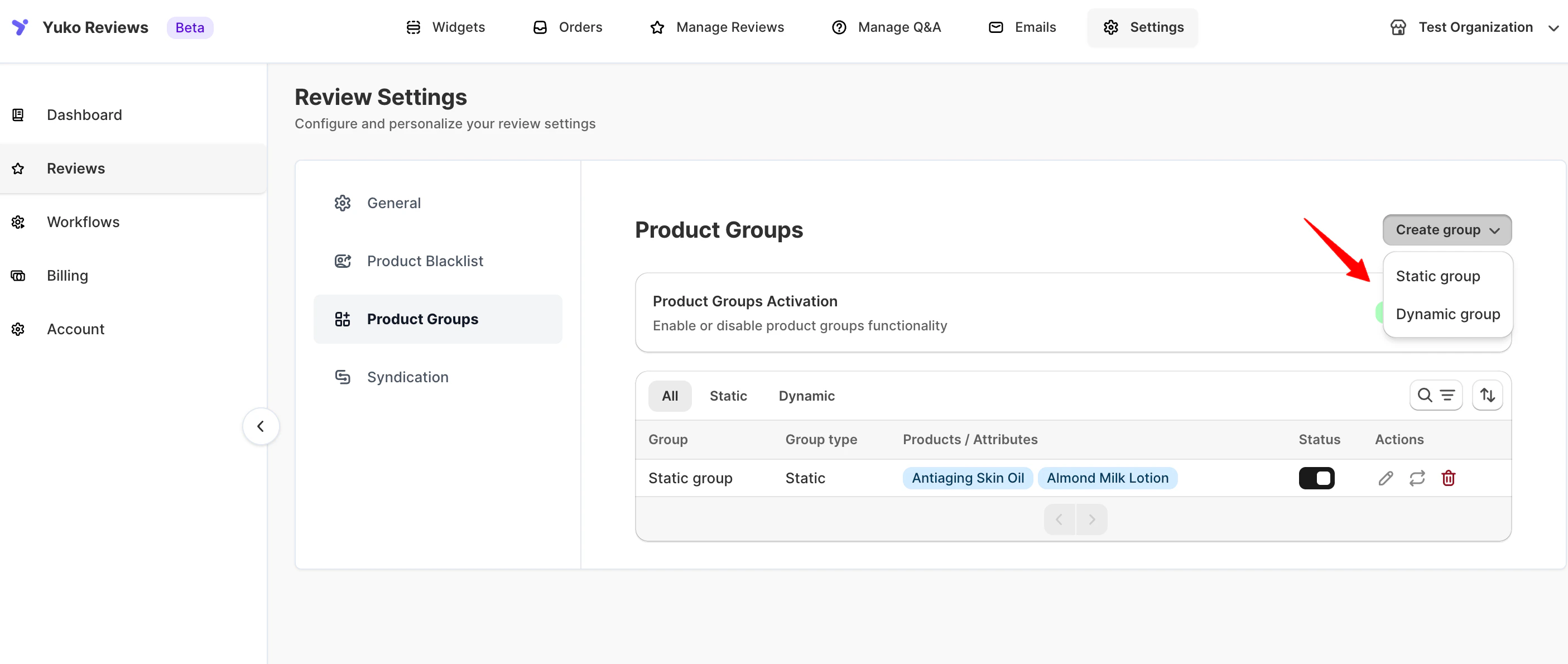
Static Groups
Static groups allow you to manually select which products belong to a group.How to Create a Static Group
- Click Create Group
- Select Static Group
- Enter a Group Name
- Click Add Manually
- Select products from the product list or search by name
- Click Add Products
- Click Save
When to Use Static Groups
- Small or curated product sets
- Special collections or campaigns
- Products that rarely change
Dynamic Groups
Dynamic groups automatically assign products based on defined conditions.How to Create a Dynamic Group
- Click Create Group
- Select Dynamic Group
- Enter a Group Name
- Choose an attribute to define the group:
- Product Tags
- Product Categories
- Product Name Contains
- Enter the matching value
- Click Save
When to Use Dynamic Groups
- Large catalogs
- Frequently changing products
- Attribute-based grouping (tags, categories, naming patterns)
💡 Dynamic groups update automatically when products change.
Manage Product Groups
All created groups are listed under Product Groups. From this page, you can:- View all product groups
- Filter by Static or Dynamic
- Edit existing groups
- Delete groups if no longer needed
Best Practices
- Use static groups for controlled, fixed product lists
- Use dynamic groups for scalability and automation
- Use clear, descriptive group names
- Review dynamic group rules periodically to ensure accuracy
Related Settings
Product Groups work alongside other Review Settings:- Review Restrictions & Limits
- Product Blacklist
- Review Display Controls