
Navigation
Yuko Dashboard → Reviews → Widgets → Customize Branding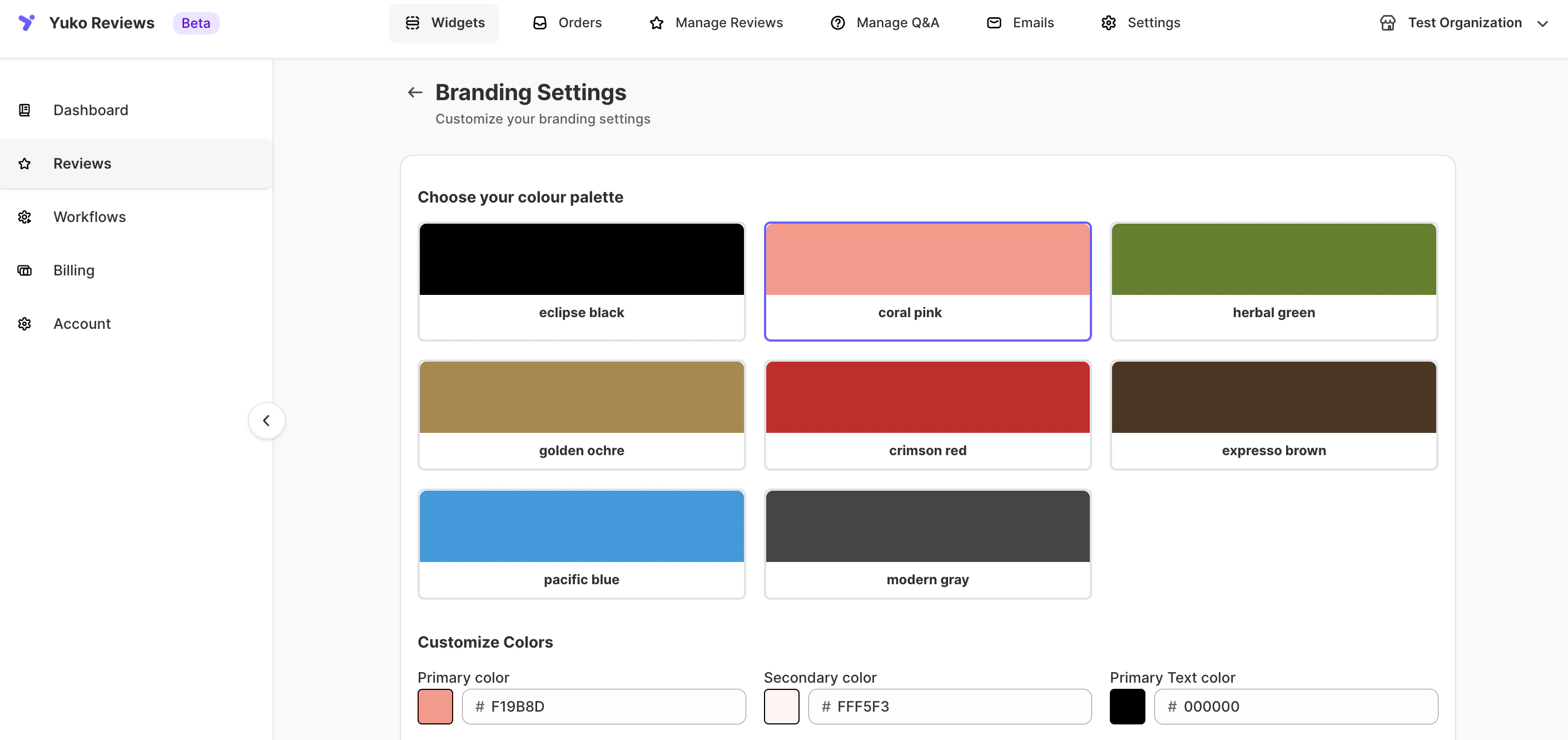
Overview
Personalize how your reviews appear across all widgets and emails.Choose your preferred color palette, font, and star icon style to match your store’s unique branding.
All visual elements — from button colors to text styles — can be customized for a consistent brand experience.
Branding Options
What You Can Customize:
From the Branding section, you can configure:- Review color palette and custom colors
- Fonts used in review widgets
- Star rating icon style
- Global branding application across widgets
Review Color & Style Settings
Yuko allows you to customize the colors used across your review widgets, including text, buttons, and star ratings.Available Options
You can:- Choose a predefined color palette
- Customize individual colors manually
- Adjust button and input styles
- Control how ratings and descriptions appear
Apply Branding to All Widgets
You can enable Apply to all widgets to enforce consistent branding across your store. When enabled:- All review widgets will use the same branding settings
- Any widget-level color customizations will be overwritten
⚠️ Note: Enabling this option will replace any individual styling changes made inside specific widgets.
Review Font Settings
You can choose the font used to display reviews on your storefront.Font Customization Includes:
- Font family selection
- Font style consistency across widgets
💡 Tip: Match your review font with your theme’s body or product font for the best results.
Star Rating Icon Style
Yuko lets you customize the icon used for star ratings across all review widgets.Available Icon Styles:
- Star
- Shop
- Round Star
- Rocket
- Leaf
- Heart
- Gem
Saving Your Changes
After making your branding updates:- Review your selections
- Click Save changes
When to Use Branding Settings
Use Branding settings when you want to:- Match reviews to your storefront theme
- Maintain consistent design across all widgets
- Update the look of reviews without editing individual widgets