
**In the Yuko Dashboard:** Reviews → Product Blacklist (or Account → Review Settings → Review Restrictions & Limits → Manage Product Blacklist)
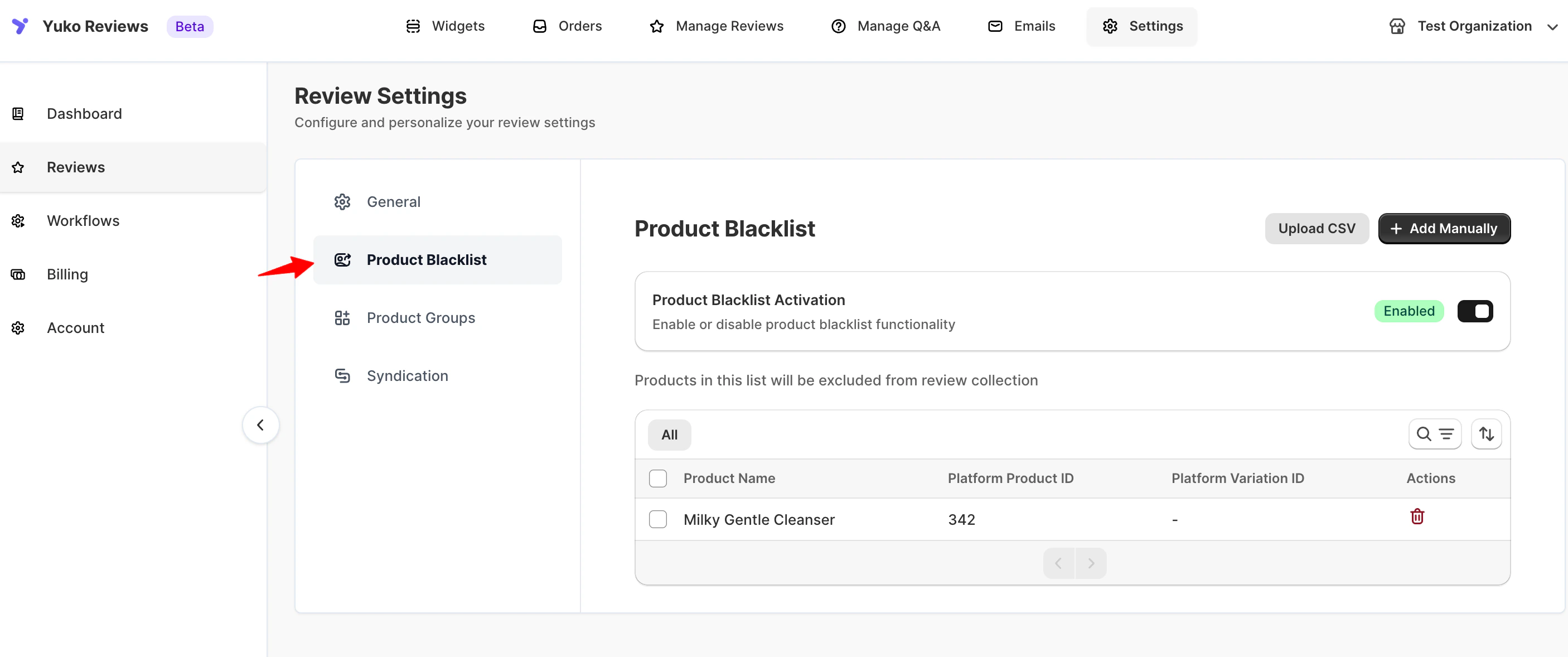
What the blacklist does
- Blacklisted products don’t receive review request emails
- Manual review requests from the Orders screen also skip these products
- Existing reviews are kept — the blacklist only affects future collection
- Removing a product from the blacklist immediately re-enables review requests
The Product Blacklist affects review collection, not review display. To stop a review from appearing on the storefront, moderate the review directly from Reviews → Manage Reviews.
Add products to the blacklist
- Add manually
- Upload CSV
- Click Add Manually
- Enter numeric product IDs, separated by commas
- Click Save
123, 456, 789Invalid or non-numeric IDs are ignored silently.Good candidates for the blacklist
Gift cards & vouchers
Customers rarely review a gift card itself — reviews on these products usually describe the buying experience, not the product.
Services & bookings
Installation, warranties, and subscription add-ons don’t benefit from product reviews.
Sample / trial SKUs
Free samples and trials distort average ratings — skip them and let paid purchases drive the review flow.
Discontinued products
Stop sending review requests for items you no longer stock, so new customers don’t land on an empty page.
Related controls
- Email Blacklist — stop email to specific addresses or domains
- Product Groups — apply review logic to a set of products at once
- Review restrictions — control who can submit reviews
Need Help?
Book Free Setup Call
Talk to our team for personalized setup helpTime: 30 minutes
Contact Support
Reach our team at yukoreviews.com/supportResponse time: Within 24 hours
View All Guides
Browse detailed guides for every feature
Integration Help
Connect Yuko with other tools