> ## Documentation Index
> Fetch the complete documentation index at: https://docs.yukoreviews.com/llms.txt
> Use this file to discover all available pages before exploring further.
> Learn the basics of creating and managing automated review workflows
# Getting Started with Workflows
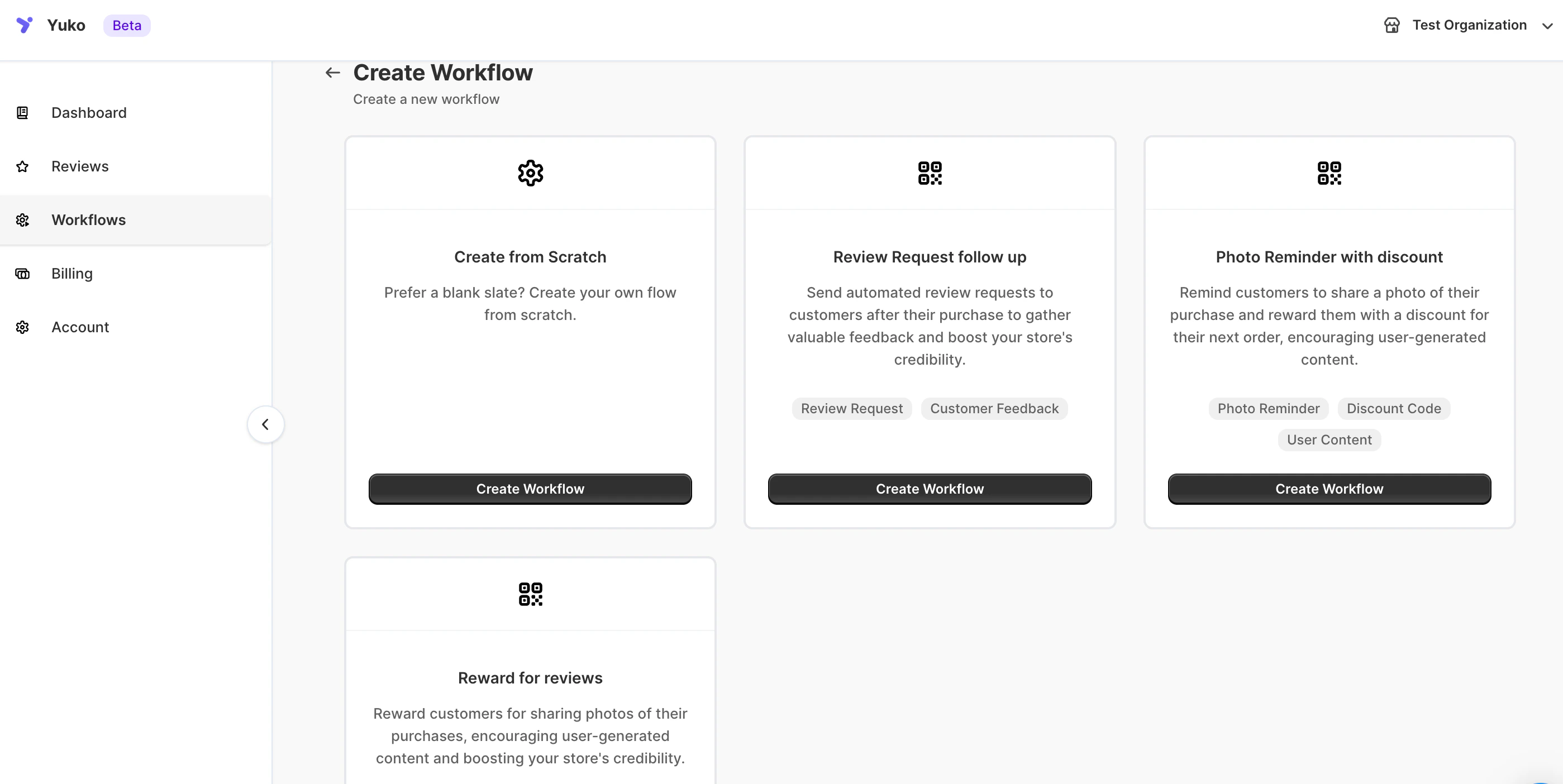
### **Navigation**
Yuko Dashboard → **Workflows → Create New Workflow**
 ### **How Workflows Work**
Each workflow follows a **trigger → condition → action** structure:
1. **Trigger:** What event starts the workflow (e.g., “Order Fulfilled”).
2. **Condition:** Who or what qualifies for the workflow (e.g., “Customer has not reviewed”).
3. **Action:** What happens (e.g., “Send review request email”).
You can create multiple workflows for different use cases.
### **Default Workflows**
Yuko provides three ready-to-use workflows out of the box:
* **Review Request Workflow**
* **Review Reminder Workflow**
* **Review Submitted & Reward Workflow**
You can customize or duplicate them anytime.
***
### **How Workflows Work**
Each workflow follows a **trigger → condition → action** structure:
1. **Trigger:** What event starts the workflow (e.g., “Order Fulfilled”).
2. **Condition:** Who or what qualifies for the workflow (e.g., “Customer has not reviewed”).
3. **Action:** What happens (e.g., “Send review request email”).
You can create multiple workflows for different use cases.
### **Default Workflows**
Yuko provides three ready-to-use workflows out of the box:
* **Review Request Workflow**
* **Review Reminder Workflow**
* **Review Submitted & Reward Workflow**
You can customize or duplicate them anytime.
***