> ## Documentation Index
> Fetch the complete documentation index at: https://docs.yukoreviews.com/llms.txt
> Use this file to discover all available pages before exploring further.
> View, manage, and respond to customer questions directly from your dashboard.
# Managing & Answering Questions
### **Navigation**
Yuko Dashboard **→ Manage Reviews -> Questions & Answers**
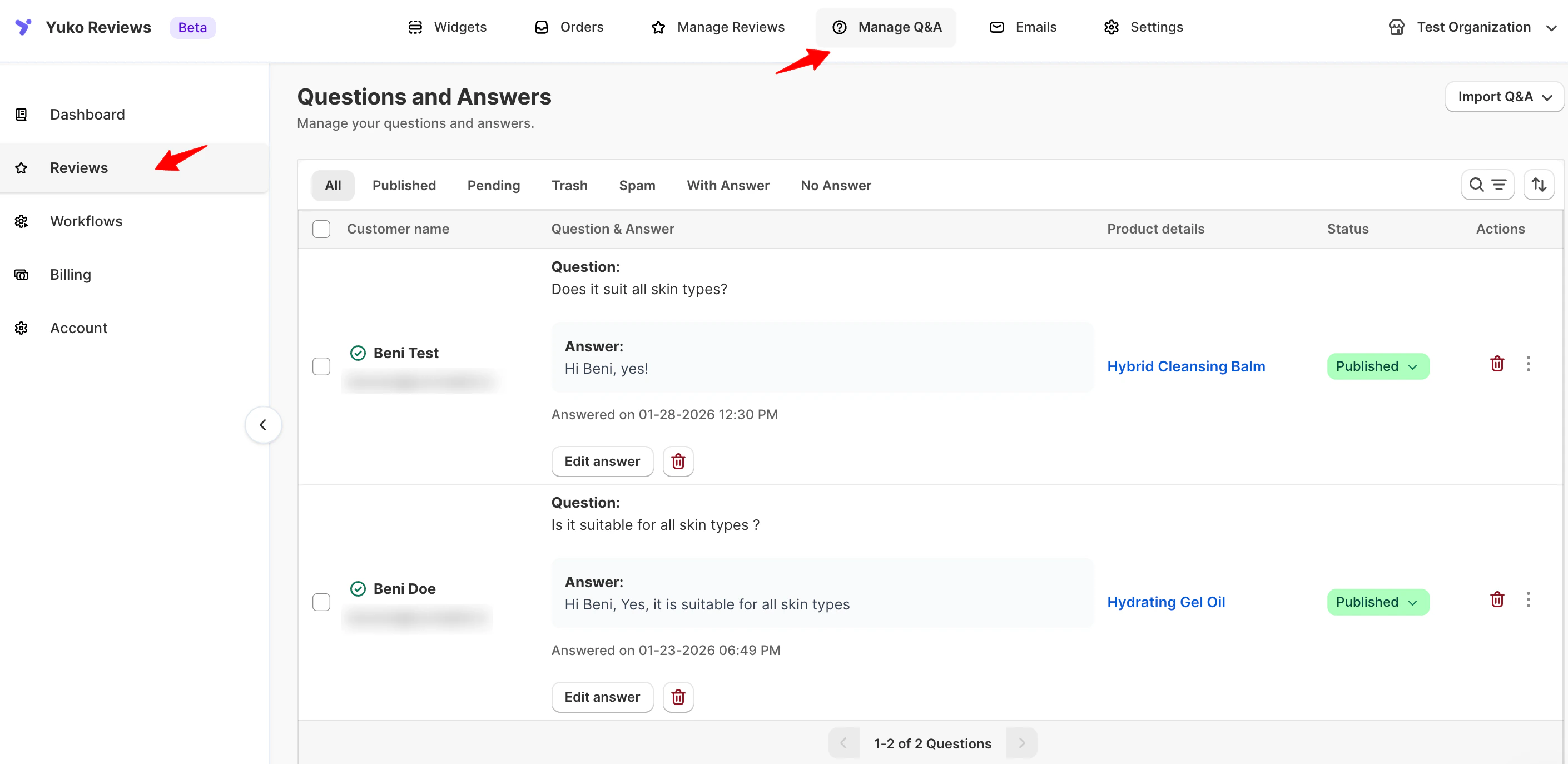 Overview
The **Questions & Answers** panel gives you full control over product-related customer questions.
For each question, you can view:
* **Customer name and email**
* **Question content**
* **Date asked**
* **Associated product**
* **Current status**
* **Answer (if added)**
You can filter questions using the tabs at the top:
* **All**
* **Published**
* **Pending**
* **Trash**
* **Spam**
* **With Answer**
* **No Answer**
***
## Question Statuses
Each question can be managed using the **Status** dropdown:
* **Pending**\
The question is saved but not yet visible on the storefront.
* **Published**\
The question (and answer, if available) is live on the product page.
* **Trash**\
Temporarily removed from view.
* **Spam**\
Filters out unwanted or irrelevant submissions.
***
## Managing Questions
Use the **Actions** menu next to each question to manage it.
| Action | Description |
| :----------------- | :-------------------------------------------- |
| **Publish** | Makes the question visible on the storefront |
| **Trash** | Moves the question to Trash |
| **Spam** | Marks the question as spam |
| **Change product** | Reassigns the question to a different product |
| **Delete** | Permanently removes the question |
***
## Answering Questions
You can reply to customer questions directly from the dashboard.
### To add an answer:
1. Go to **Manage Q\&A**
2. Locate a question with **No answer provided yet**
3. Click **Add answer**
Overview
The **Questions & Answers** panel gives you full control over product-related customer questions.
For each question, you can view:
* **Customer name and email**
* **Question content**
* **Date asked**
* **Associated product**
* **Current status**
* **Answer (if added)**
You can filter questions using the tabs at the top:
* **All**
* **Published**
* **Pending**
* **Trash**
* **Spam**
* **With Answer**
* **No Answer**
***
## Question Statuses
Each question can be managed using the **Status** dropdown:
* **Pending**\
The question is saved but not yet visible on the storefront.
* **Published**\
The question (and answer, if available) is live on the product page.
* **Trash**\
Temporarily removed from view.
* **Spam**\
Filters out unwanted or irrelevant submissions.
***
## Managing Questions
Use the **Actions** menu next to each question to manage it.
| Action | Description |
| :----------------- | :-------------------------------------------- |
| **Publish** | Makes the question visible on the storefront |
| **Trash** | Moves the question to Trash |
| **Spam** | Marks the question as spam |
| **Change product** | Reassigns the question to a different product |
| **Delete** | Permanently removes the question |
***
## Answering Questions
You can reply to customer questions directly from the dashboard.
### To add an answer:
1. Go to **Manage Q\&A**
2. Locate a question with **No answer provided yet**
3. Click **Add answer**
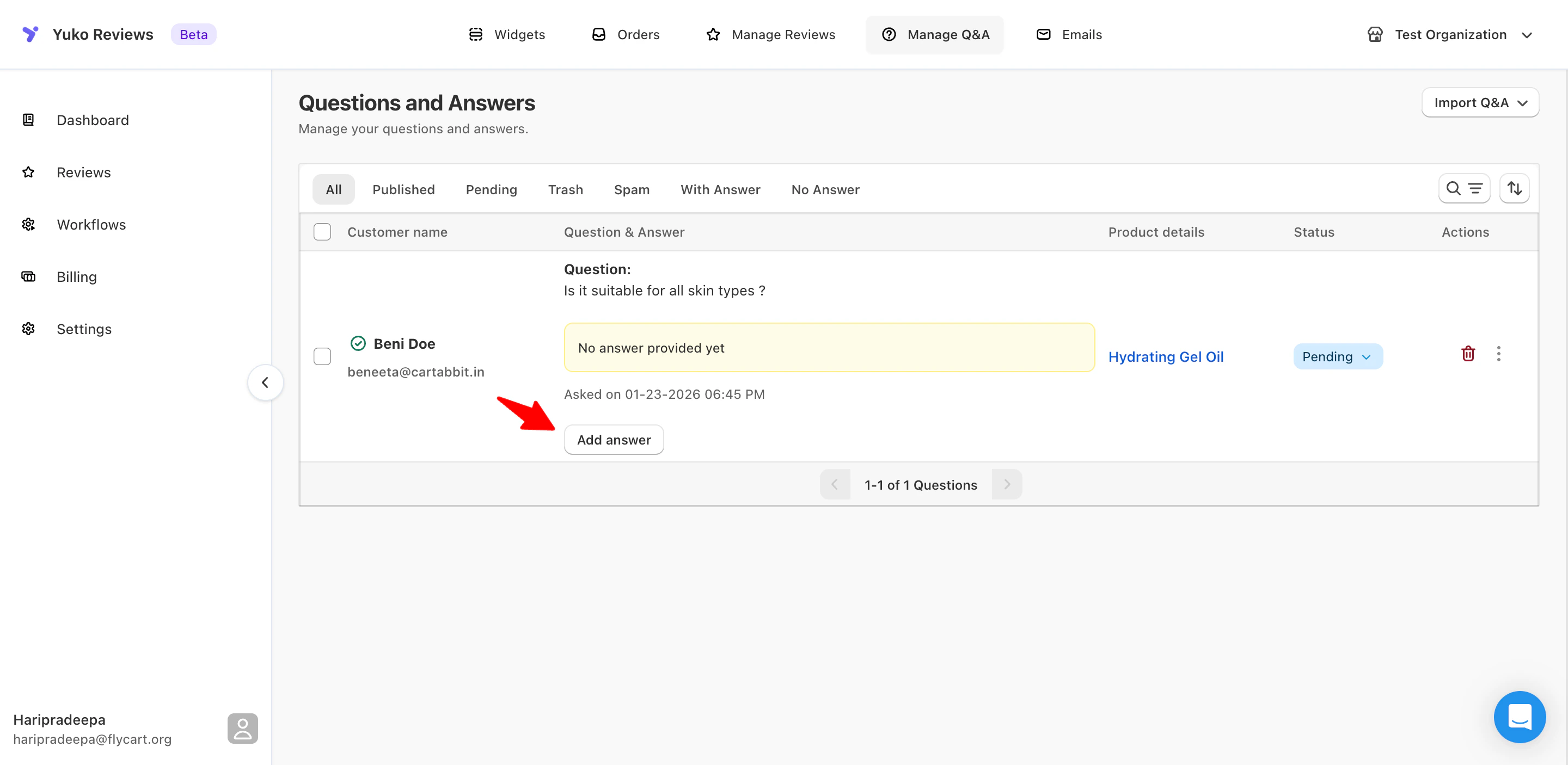 4. Enter your response
 5. Choose if you want to **publish the question** or **notify customer**
For notifying customers, you need to have "Question answered & approved email" template enabled
Once published, your answer will appear **below the question** on the product page if you choose to publish it.
### Editing or Removing an Answer
* Click **Edit answer** to update your response
* Use the **delete icon** to remove an answer if needed
***
5. Choose if you want to **publish the question** or **notify customer**
For notifying customers, you need to have "Question answered & approved email" template enabled
Once published, your answer will appear **below the question** on the product page if you choose to publish it.
### Editing or Removing an Answer
* Click **Edit answer** to update your response
* Use the **delete icon** to remove an answer if needed
***