> ## Documentation Index
> Fetch the complete documentation index at: https://docs.yukoreviews.com/llms.txt
> Use this file to discover all available pages before exploring further.
# Review Syndication
> Sync reviews between multiple stores by connecting them through syndication groups.
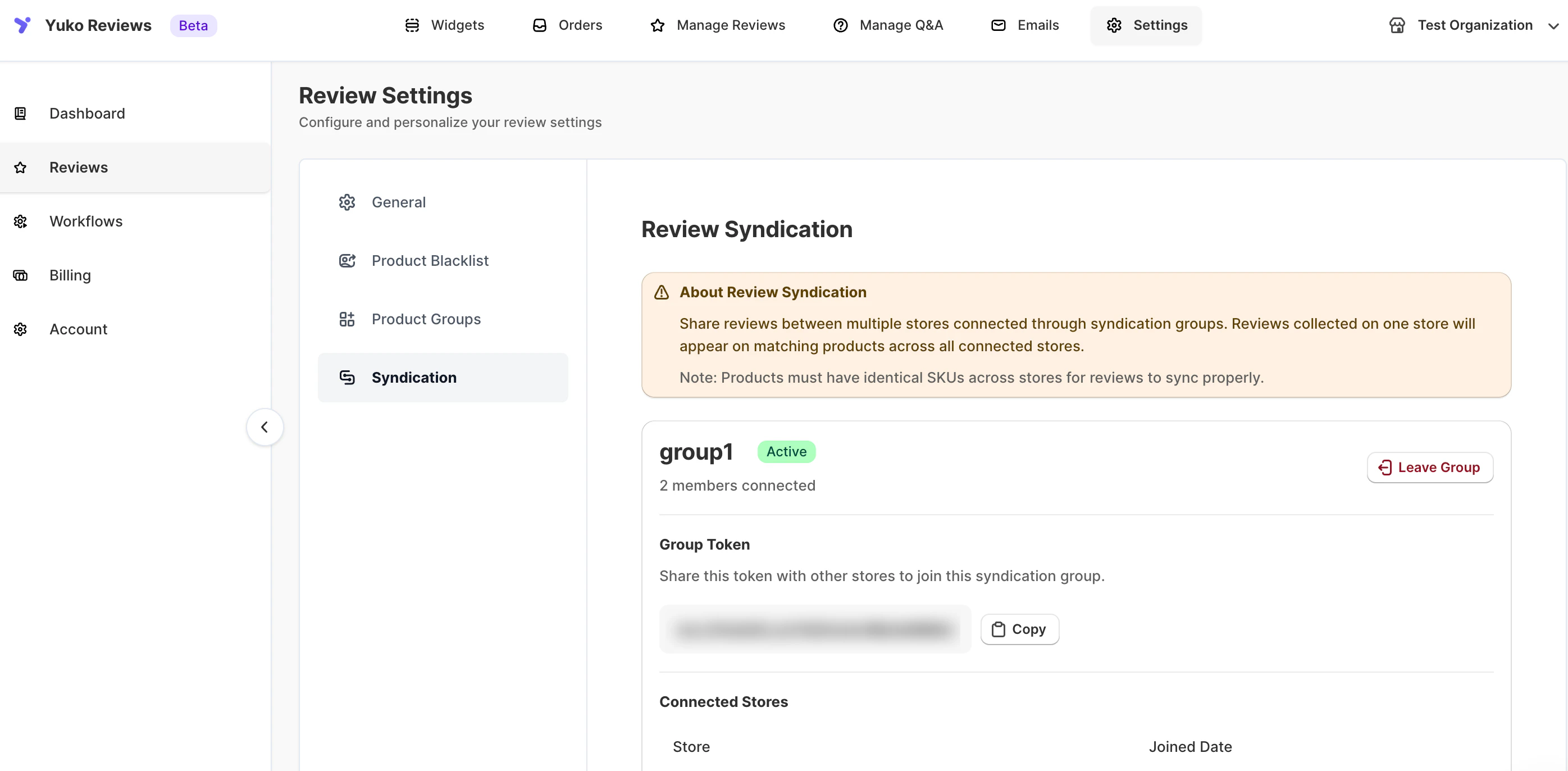
Review Syndication lets you **share reviews across multiple stores** connected through a syndication group.
Reviews collected on one store can automatically appear on matching products in other connected stores, helping you build social proof faster across your storefront network.
**Navigation : Yuko Dashboard → Reviews → Settings → Syndication**
 ## How Review Syndication Works
When stores are connected through a syndication group:
* Reviews collected on one store are shared with other connected stores
* Reviews appear on matching products across all stores in the group
* Syndicated reviews stay in sync automatically
**Important:** Products must have **identical SKUs** across all connected stores for reviews to sync correctly.
***
## Create a Syndication Group
You can create a new syndication group and invite other stores to join it.
### To Create a New Group
1. Go to **Settings → Reviews → Syndication**
2. Under **Create a New Syndication Group**, enter:
* **Group Name**
* Click **Create Group**
Once created:
* Your store is automatically added as the first member
* A unique **Group Token** is generated
## How Review Syndication Works
When stores are connected through a syndication group:
* Reviews collected on one store are shared with other connected stores
* Reviews appear on matching products across all stores in the group
* Syndicated reviews stay in sync automatically
**Important:** Products must have **identical SKUs** across all connected stores for reviews to sync correctly.
***
## Create a Syndication Group
You can create a new syndication group and invite other stores to join it.
### To Create a New Group
1. Go to **Settings → Reviews → Syndication**
2. Under **Create a New Syndication Group**, enter:
* **Group Name**
* Click **Create Group**
Once created:
* Your store is automatically added as the first member
* A unique **Group Token** is generated
 ## Group Token
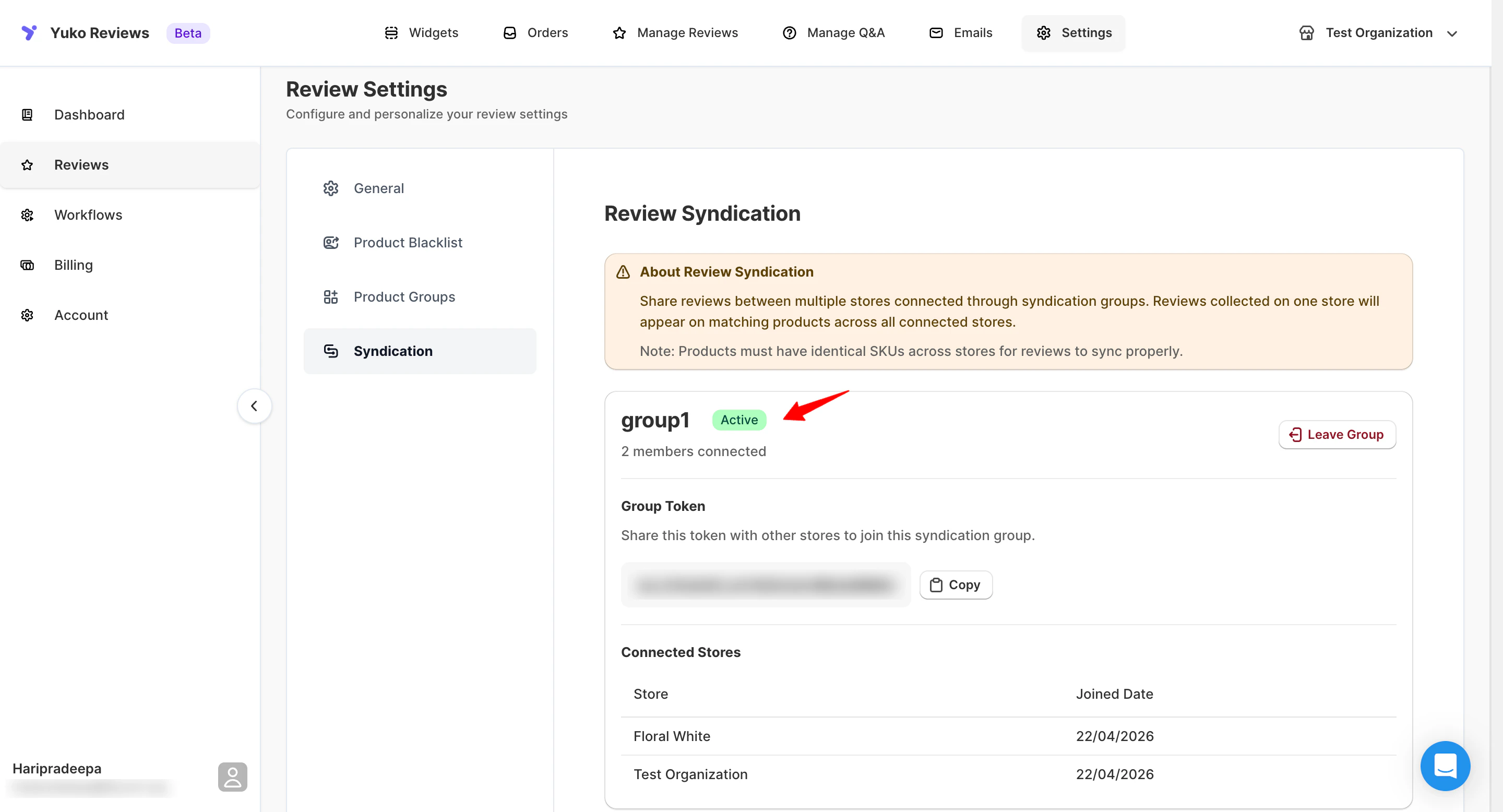
The group token is used to connect additional stores to the syndication group.
From the group details page, you can:
* Copy the group token
* Regenerate the token if needed
* Share the token securely with other store owners
> 🔐 Anyone with the token can request to join the group.
***
## Join an Existing Syndication Group
If another store has shared a group token with you, you can join their syndication group.
### To Join a Group
1. Go to **Settings → Reviews → Syndication**
2. Under **Join an Existing Group**, paste the **Group Token**
3. Click **Join Group**
## Group Token
The group token is used to connect additional stores to the syndication group.
From the group details page, you can:
* Copy the group token
* Regenerate the token if needed
* Share the token securely with other store owners
> 🔐 Anyone with the token can request to join the group.
***
## Join an Existing Syndication Group
If another store has shared a group token with you, you can join their syndication group.
### To Join a Group
1. Go to **Settings → Reviews → Syndication**
2. Under **Join an Existing Group**, paste the **Group Token**
3. Click **Join Group**  Once approved, your store will begin receiving syndicated reviews.
***
## Manage Syndication Groups
For each syndication group, you can view and manage:
* Connected stores
* Store join dates
* Group status (Active / Inactive)
* Group token access
### Activate or Deactivate a Group
* **Active:** Reviews are shared across connected stores
* **Inactive:** Review syncing is paused without removing stores
A visual status indicator shows whether a group is currently active.
***
## Delete a Syndication Group
You can delete a syndication group at any time.
When a group is deleted:
* All stores are disconnected
* Review syncing stops immediately
* Existing reviews remain intact on each store
> ⚠️ Deleting a group cannot be undone.
***
## Best Practices
* Ensure SKUs match exactly across all connected stores
* Use clear group names for easy identification
* Share group tokens securely
* Test syndication with a small group before scaling
***
## When to Use Review Syndication
Review Syndication is ideal if you:
* Operate multiple storefronts or regions
* Sell the same products across different stores
* Want to build social proof faster
For product-level grouping or review collection controls, see other sections under **Settings → Reviews**.
Important: This feature is available **only on a paid plan**.
Once approved, your store will begin receiving syndicated reviews.
***
## Manage Syndication Groups
For each syndication group, you can view and manage:
* Connected stores
* Store join dates
* Group status (Active / Inactive)
* Group token access
### Activate or Deactivate a Group
* **Active:** Reviews are shared across connected stores
* **Inactive:** Review syncing is paused without removing stores
A visual status indicator shows whether a group is currently active.
***
## Delete a Syndication Group
You can delete a syndication group at any time.
When a group is deleted:
* All stores are disconnected
* Review syncing stops immediately
* Existing reviews remain intact on each store
> ⚠️ Deleting a group cannot be undone.
***
## Best Practices
* Ensure SKUs match exactly across all connected stores
* Use clear group names for easy identification
* Share group tokens securely
* Test syndication with a small group before scaling
***
## When to Use Review Syndication
Review Syndication is ideal if you:
* Operate multiple storefronts or regions
* Sell the same products across different stores
* Want to build social proof faster
For product-level grouping or review collection controls, see other sections under **Settings → Reviews**.
Important: This feature is available **only on a paid plan**.