> ## Documentation Index
> Fetch the complete documentation index at: https://docs.yukoreviews.com/llms.txt
> Use this file to discover all available pages before exploring further.
# Product Groups
> Organize products together to manage review settings more efficiently across your store.
Product Groups let you organize products into logical groups and manage review behavior more efficiently across your catalog.
Instead of configuring products one by one, you can apply review settings to a group of products at once.
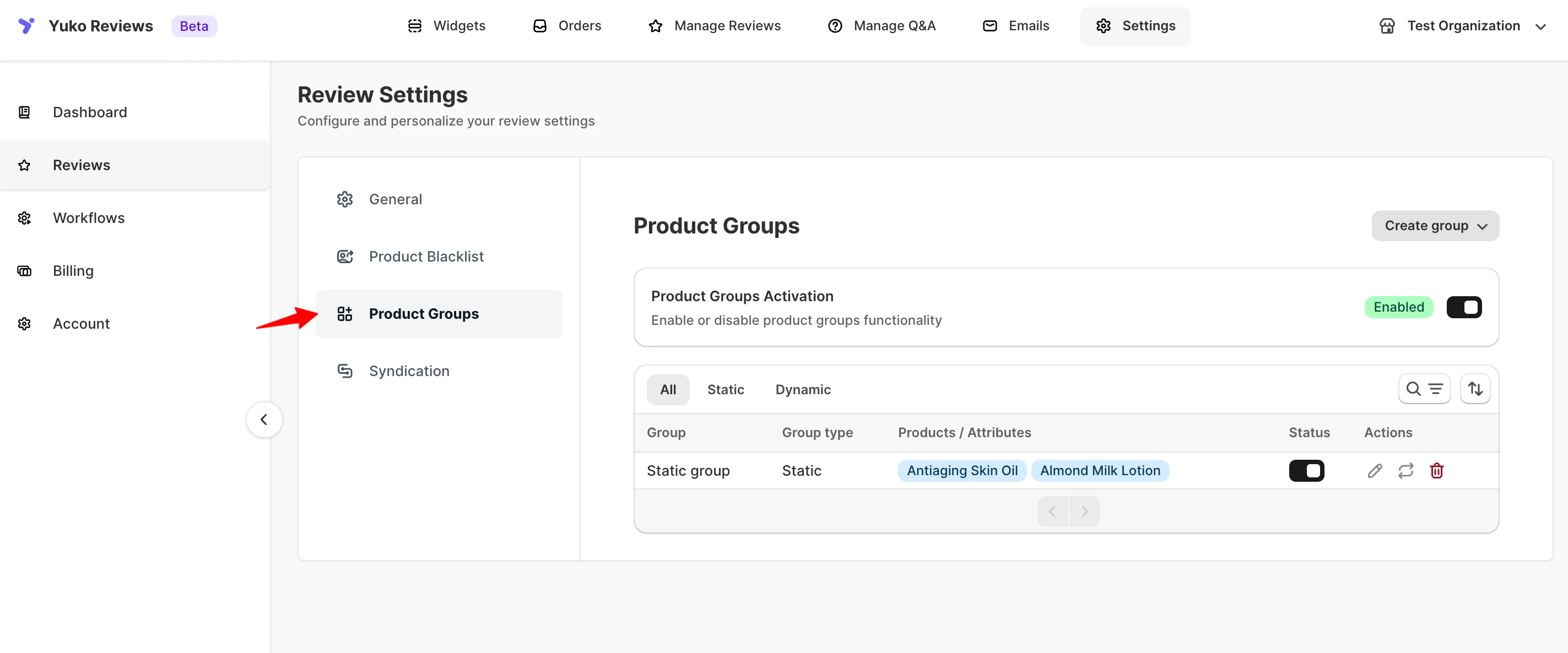
**Navigation: Yuko Dashboard → Reviews → Settings → Product Groups**
 ***
## What Are Product Groups?
Product Groups allow you to:
* Group multiple products together
* Apply review-related logic at scale
* Manage large catalogs more efficiently
You can create:
* **Static groups** (manual product selection)
* **Dynamic groups** (automatic product assignment)
***
## Enable or Disable Product Groups
Before creating groups, you must enable the Product Groups feature.
### To enable Product Groups:
1. Go to **Settings → Reviews → Product Groups**
2. Toggle **Product Groups Activation** ON
You can disable this feature at any time by turning the toggle OFF.
Disabling Product Groups does not delete existing groups but stops them from being applied.
***
## Create a Product Group
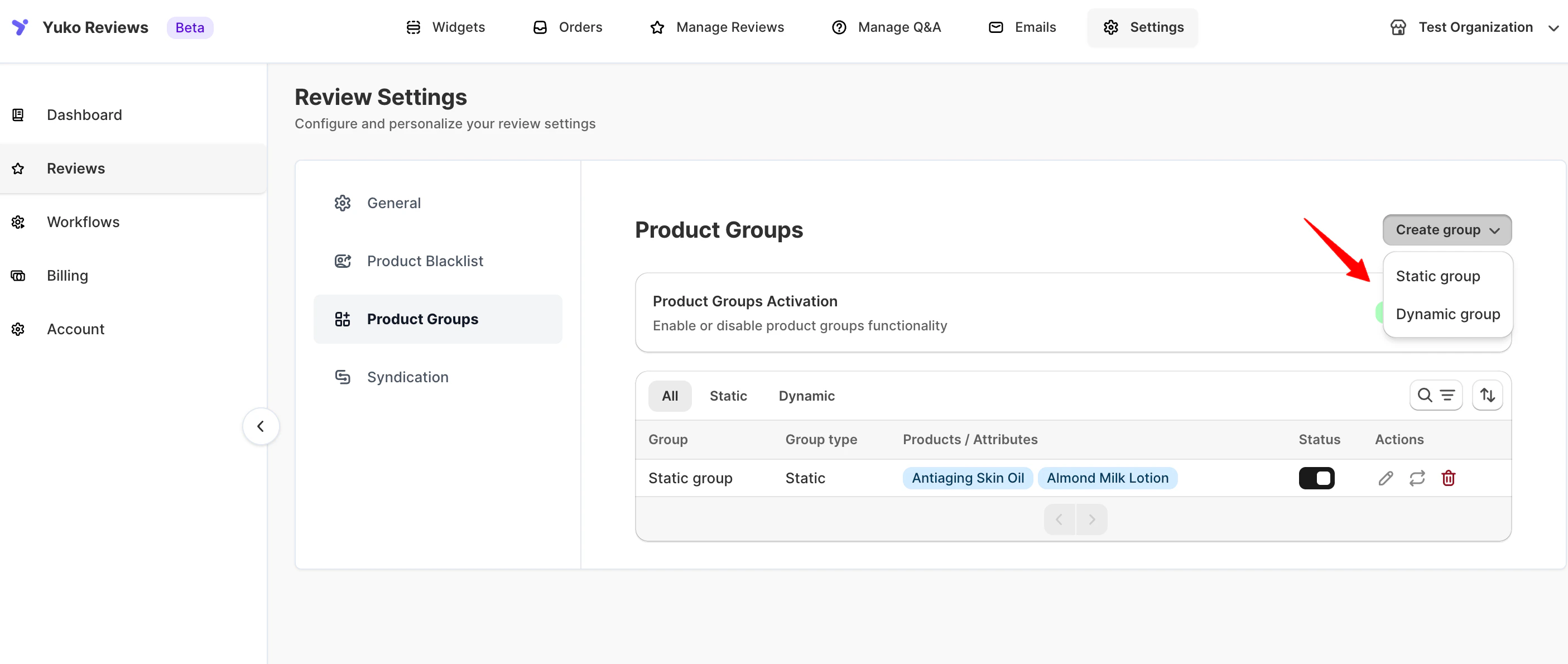
Click **Create Group** in the top-right corner to add a new product group.
You can choose between **Static Group** and **Dynamic Group**.
***
## What Are Product Groups?
Product Groups allow you to:
* Group multiple products together
* Apply review-related logic at scale
* Manage large catalogs more efficiently
You can create:
* **Static groups** (manual product selection)
* **Dynamic groups** (automatic product assignment)
***
## Enable or Disable Product Groups
Before creating groups, you must enable the Product Groups feature.
### To enable Product Groups:
1. Go to **Settings → Reviews → Product Groups**
2. Toggle **Product Groups Activation** ON
You can disable this feature at any time by turning the toggle OFF.
Disabling Product Groups does not delete existing groups but stops them from being applied.
***
## Create a Product Group
Click **Create Group** in the top-right corner to add a new product group.
You can choose between **Static Group** and **Dynamic Group**.
 ***
## Static Groups
Static groups allow you to manually select which products belong to a group.
### How to Create a Static Group
1. Click **Create Group**
2. Select **Static Group**
3. Enter a **Group Name**
4. Click **Add Manually**
5. Select products from the product list or search by name
6. Click **Add Products**
7. Click **Save**
The selected products will now belong to this group.
### When to Use Static Groups
* Small or curated product sets
* Special collections or campaigns
* Products that rarely change
***
## Dynamic Groups
Dynamic groups automatically assign products based on defined conditions.
### How to Create a Dynamic Group
1. Click **Create Group**
2. Select **Dynamic Group**
3. Enter a **Group Name**
4. Choose an attribute to define the group:
* **Product Tags**
* **Product Categories**
* **Product Name Contains**
5. Enter the matching value
6. Click **Save**
Products that meet the criteria will automatically be added to the group.
### When to Use Dynamic Groups
* Large catalogs
* Frequently changing products
* Attribute-based grouping (tags, categories, naming patterns)
> 💡 Dynamic groups update automatically when products change.
***
## Manage Product Groups
All created groups are listed under **Product Groups**.
From this page, you can:
* View all product groups
* Filter by **Static** or **Dynamic**
* Edit existing groups
* Delete groups if no longer needed
***
## Best Practices
* Use **static groups** for controlled, fixed product lists
* Use **dynamic groups** for scalability and automation
* Use clear, descriptive group names
* Review dynamic group rules periodically to ensure accuracy
***
## Related Settings
Product Groups work alongside other Review Settings:
* Review Restrictions & Limits
* Product Blacklist
* Review Display Controls
***
Important: This feature is available **only on a paid plan**.
***
## Static Groups
Static groups allow you to manually select which products belong to a group.
### How to Create a Static Group
1. Click **Create Group**
2. Select **Static Group**
3. Enter a **Group Name**
4. Click **Add Manually**
5. Select products from the product list or search by name
6. Click **Add Products**
7. Click **Save**
The selected products will now belong to this group.
### When to Use Static Groups
* Small or curated product sets
* Special collections or campaigns
* Products that rarely change
***
## Dynamic Groups
Dynamic groups automatically assign products based on defined conditions.
### How to Create a Dynamic Group
1. Click **Create Group**
2. Select **Dynamic Group**
3. Enter a **Group Name**
4. Choose an attribute to define the group:
* **Product Tags**
* **Product Categories**
* **Product Name Contains**
5. Enter the matching value
6. Click **Save**
Products that meet the criteria will automatically be added to the group.
### When to Use Dynamic Groups
* Large catalogs
* Frequently changing products
* Attribute-based grouping (tags, categories, naming patterns)
> 💡 Dynamic groups update automatically when products change.
***
## Manage Product Groups
All created groups are listed under **Product Groups**.
From this page, you can:
* View all product groups
* Filter by **Static** or **Dynamic**
* Edit existing groups
* Delete groups if no longer needed
***
## Best Practices
* Use **static groups** for controlled, fixed product lists
* Use **dynamic groups** for scalability and automation
* Use clear, descriptive group names
* Review dynamic group rules periodically to ensure accuracy
***
## Related Settings
Product Groups work alongside other Review Settings:
* Review Restrictions & Limits
* Product Blacklist
* Review Display Controls
***
Important: This feature is available **only on a paid plan**.