> ## Documentation Index
> Fetch the complete documentation index at: https://docs.yukoreviews.com/llms.txt
> Use this file to discover all available pages before exploring further.
> Enable admin notifications to stay updated on new reviews and customer activity.
# Admin Notifications
### **Navigation**
\
**Yuko Dashboard → Reviews → Settings → General → Admin Notifications**
 ***
### Enable Admin Notification Emails
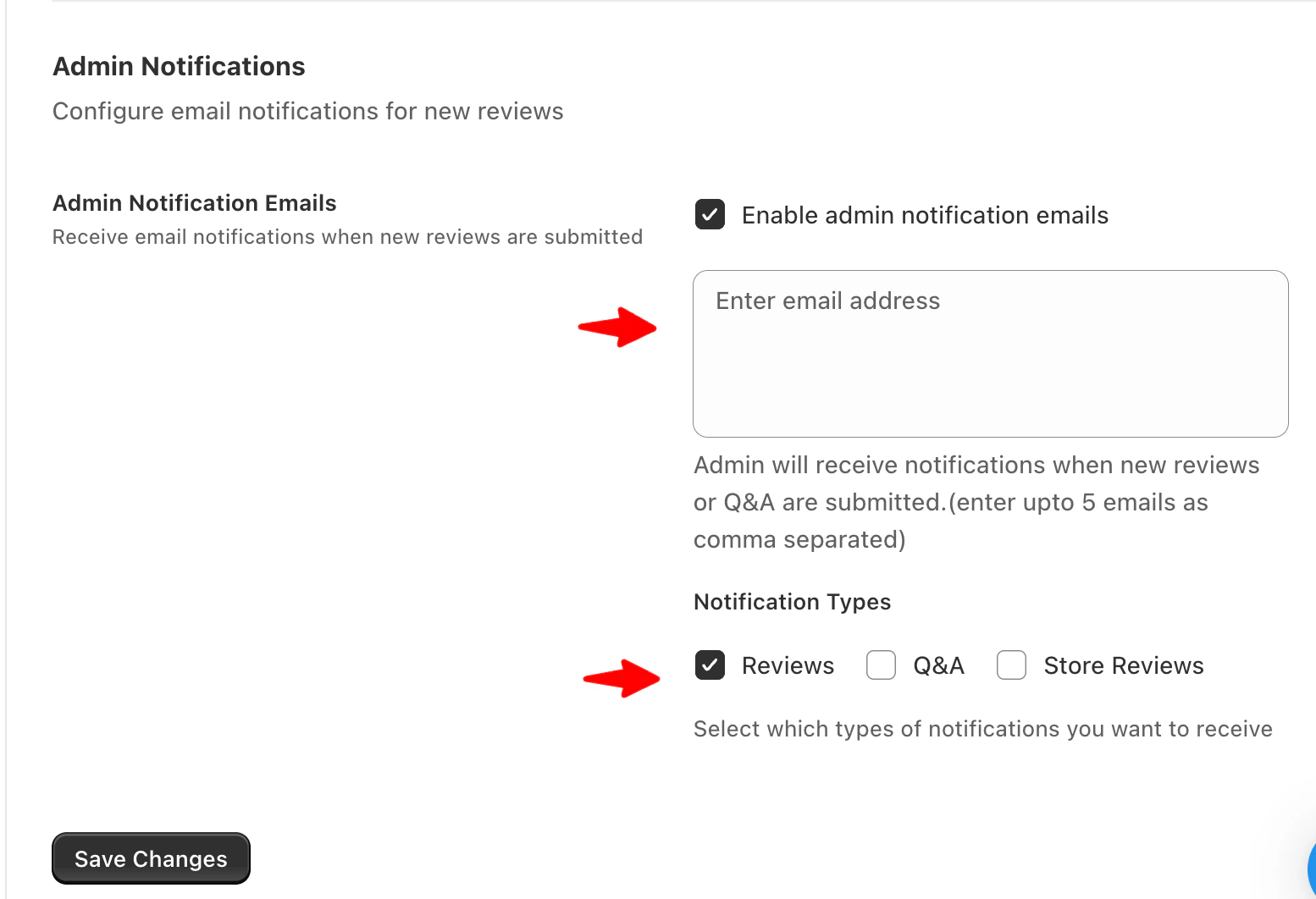
You can choose to receive email notifications whenever customers submit new content.
### To Enable Admin Notifications
1. Go to **Settings → Reviews → General**
2. Scroll to the **Admin Notifications** section
3. Enable **Admin Notification Emails**
Once enabled, additional configuration options will appear.
***
### Notification Email Addresses
Enter the email addresses that should receive admin notifications.
* Add up to **5 email addresses**
* Separate multiple emails with commas
* This field is **required** to enable notifications
Example:\
`admin@store.com, support@store.com`
Make sure all email addresses entered are valid to ensure delivery.
***
### Notification Types
Choose which types of notifications you want to receive.
You can enable notifications for:
* **Product Reviews**
* **Store Reviews**
* **Questions & Answers (Q\&A)**
You can select one, multiple, or all notification types depending on your needs.
***
### Save Your Settings
After configuring your preferences:
1. Review your email addresses and notification types
2. Click **Save changes**
Your admin notification settings will be applied immediately.
***
### When to Use Admin Notifications
Admin notifications are useful if you want to:
* Respond quickly to new reviews
* Moderate feedback in real time
* Stay informed about customer questions
* Monitor store reputation actively
For customer-facing emails, see **Email Settings** under **Settings → Reviews**.
***
### **How It Works**
Once enabled, the listed admins will receive an email whenever:
* A **new review** is submitted.
* A **new Q\&A** entry is posted by a customer.
This ensures your team stays informed about all review-related activities in real time.
**Next Step:** Continue to **Workflows** — automate your review requests, reminders, and reward flows effortlessly.
***
### Enable Admin Notification Emails
You can choose to receive email notifications whenever customers submit new content.
### To Enable Admin Notifications
1. Go to **Settings → Reviews → General**
2. Scroll to the **Admin Notifications** section
3. Enable **Admin Notification Emails**
Once enabled, additional configuration options will appear.
***
### Notification Email Addresses
Enter the email addresses that should receive admin notifications.
* Add up to **5 email addresses**
* Separate multiple emails with commas
* This field is **required** to enable notifications
Example:\
`admin@store.com, support@store.com`
Make sure all email addresses entered are valid to ensure delivery.
***
### Notification Types
Choose which types of notifications you want to receive.
You can enable notifications for:
* **Product Reviews**
* **Store Reviews**
* **Questions & Answers (Q\&A)**
You can select one, multiple, or all notification types depending on your needs.
***
### Save Your Settings
After configuring your preferences:
1. Review your email addresses and notification types
2. Click **Save changes**
Your admin notification settings will be applied immediately.
***
### When to Use Admin Notifications
Admin notifications are useful if you want to:
* Respond quickly to new reviews
* Moderate feedback in real time
* Stay informed about customer questions
* Monitor store reputation actively
For customer-facing emails, see **Email Settings** under **Settings → Reviews**.
***
### **How It Works**
Once enabled, the listed admins will receive an email whenever:
* A **new review** is submitted.
* A **new Q\&A** entry is posted by a customer.
This ensures your team stays informed about all review-related activities in real time.
**Next Step:** Continue to **Workflows** — automate your review requests, reminders, and reward flows effortlessly.