> ## Documentation Index
> Fetch the complete documentation index at: https://docs.yukoreviews.com/llms.txt
> Use this file to discover all available pages before exploring further.
> Integrate Yuko with WPLoyalty to reward customers for submitting reviews.
# WPLoyalty Integration
**WP Loyalty – Yuko Review Add-On**
Enhance your store’s customer engagement by integrating **WPLoyalty** with the **Yuko Review plugin**. The **WPLoyalty – Yuko Reviews Add‑On** lets you reward customers with loyalty points whenever they leave product reviews—turning reviews into a powerful loyalty‑building tool.
**Important:** This functionality works **only when the WPLoyalty – Yuko Reviews Add‑On is installed and activated**. Without the add‑on, reviews submitted via Yuko will **not** trigger loyalty points.
***
### What This Add‑On Does:
With the **WPLoyalty – Yuko Reviews Add‑On**, you can:
* Automatically award **loyalty points** to customers when they submit product reviews through Yuko.
* Only reward **approved reviews**, according to your WPLoyalty campaign settings.
* Encourage more feedback and increase **repeat purchases**.
**Note:** Some features require the **PRO version** of WPLoyalty.\
[Get WPLoyalty PRO](https://wployalty.net)
***
### Installation & Activation
Follow these simple steps:
Get the **WPLoyalty – Yuko Reviews Add‑On** here: [https://wployalty.net/add‑ons/yuko‑product‑reviews/](https://wployalty.net/add‑ons/yuko‑product‑reviews/)
* Ensure the **WPLoyalty plugin** is already installed and active.
* Upload, install, and activate the **WPLoyalty – Yuko Reviews Add‑On**.
* Go to **WordPress Dashboard → WPLoyalty → Add‑ons**
* Find **WPLoyalty – Yuko Reviews Add‑On**
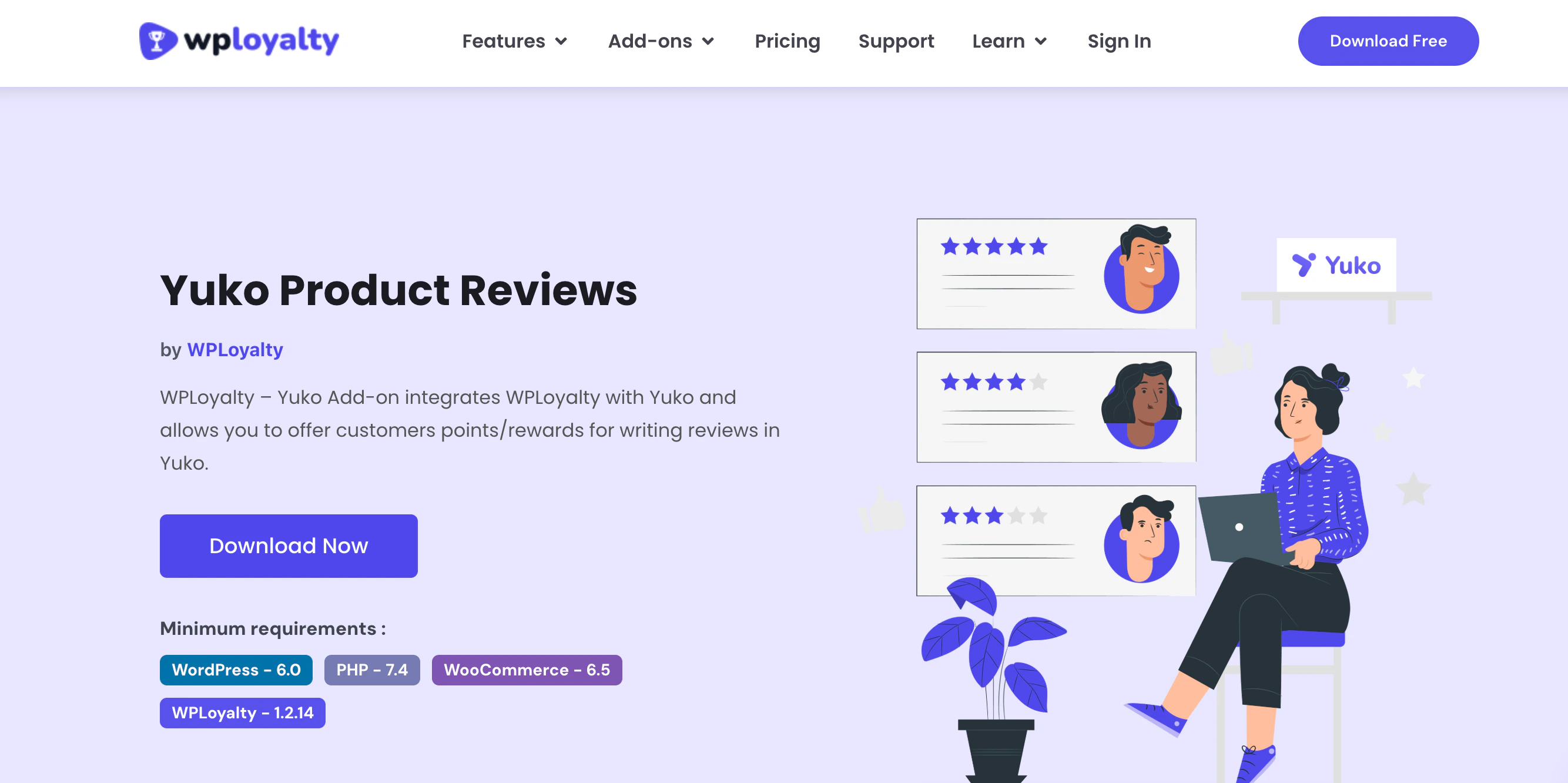 * Click **Activate** to enable or **Deactivate** to disable.
***
### Configuring the Add‑On
**1. Set Up the Webhook**
* After activation, a **Webhook URL** appears on the add‑on page.
* Copy this URL.
* Click **Activate** to enable or **Deactivate** to disable.
***
### Configuring the Add‑On
**1. Set Up the Webhook**
* After activation, a **Webhook URL** appears on the add‑on page.
* Copy this URL.
 **2. Add the Webhook in Yuko**
* Log in to your **Yuko Dashboard**.
* Navigate to **Accounts → Integrations → Add Webhook**.
**2. Add the Webhook in Yuko**
* Log in to your **Yuko Dashboard**.
* Navigate to **Accounts → Integrations → Add Webhook**.
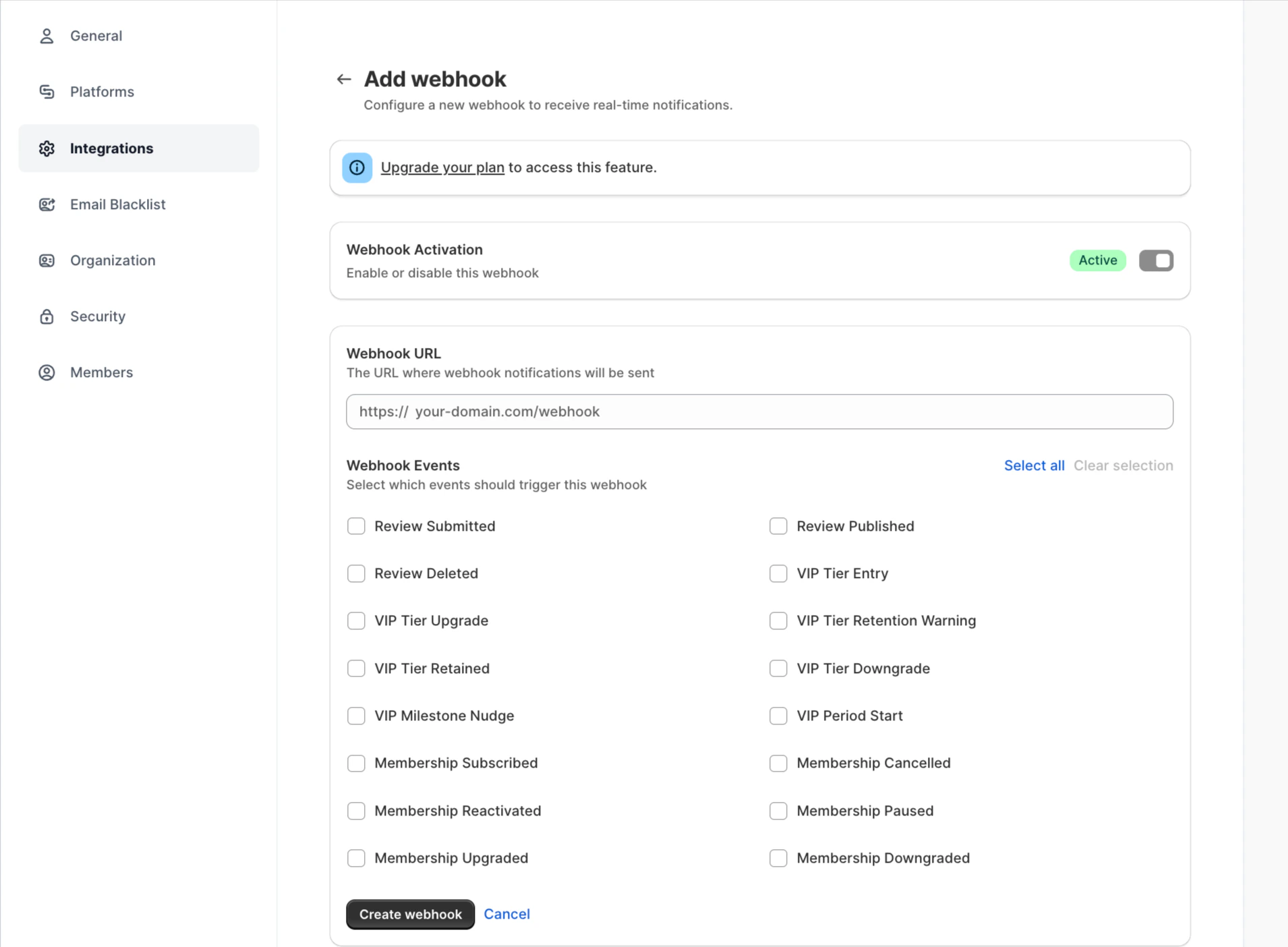
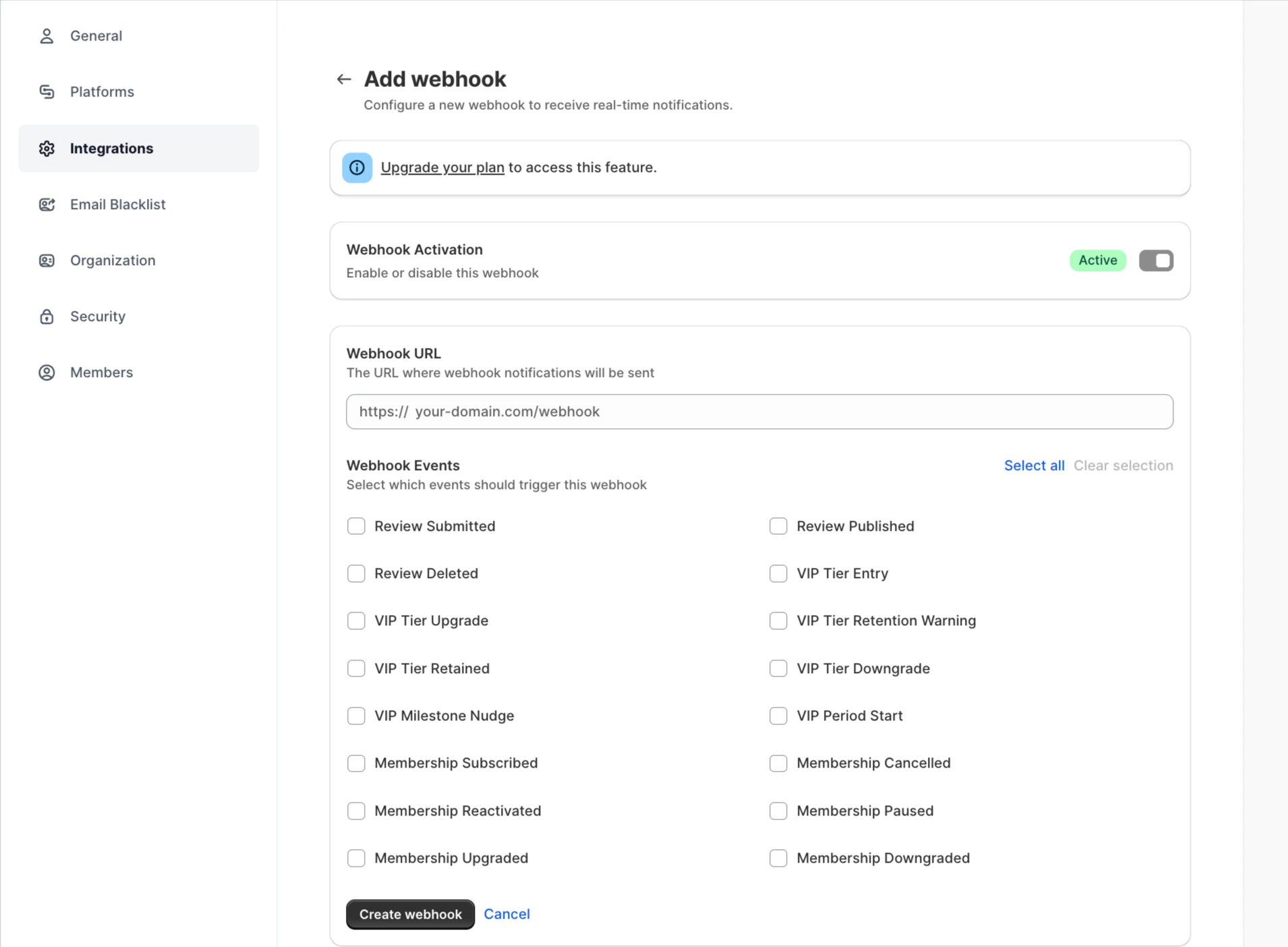 * Paste the **Webhook URL** copied from the add‑on.
* Under **Webhook Events**, choose which events should trigger the webhook.
* You can select one or multiple events. Here are a few events listed:
**Review Submitted** – triggers when a customer submits a review.
**Review Published** – triggers when a review is approved/published.
**Review Deleted** – triggers when a review is removed.
For loyalty points, it’s usually best to select **Review Published**, so customers only earn points for approved reviews.
**3. Add the Secret Key**
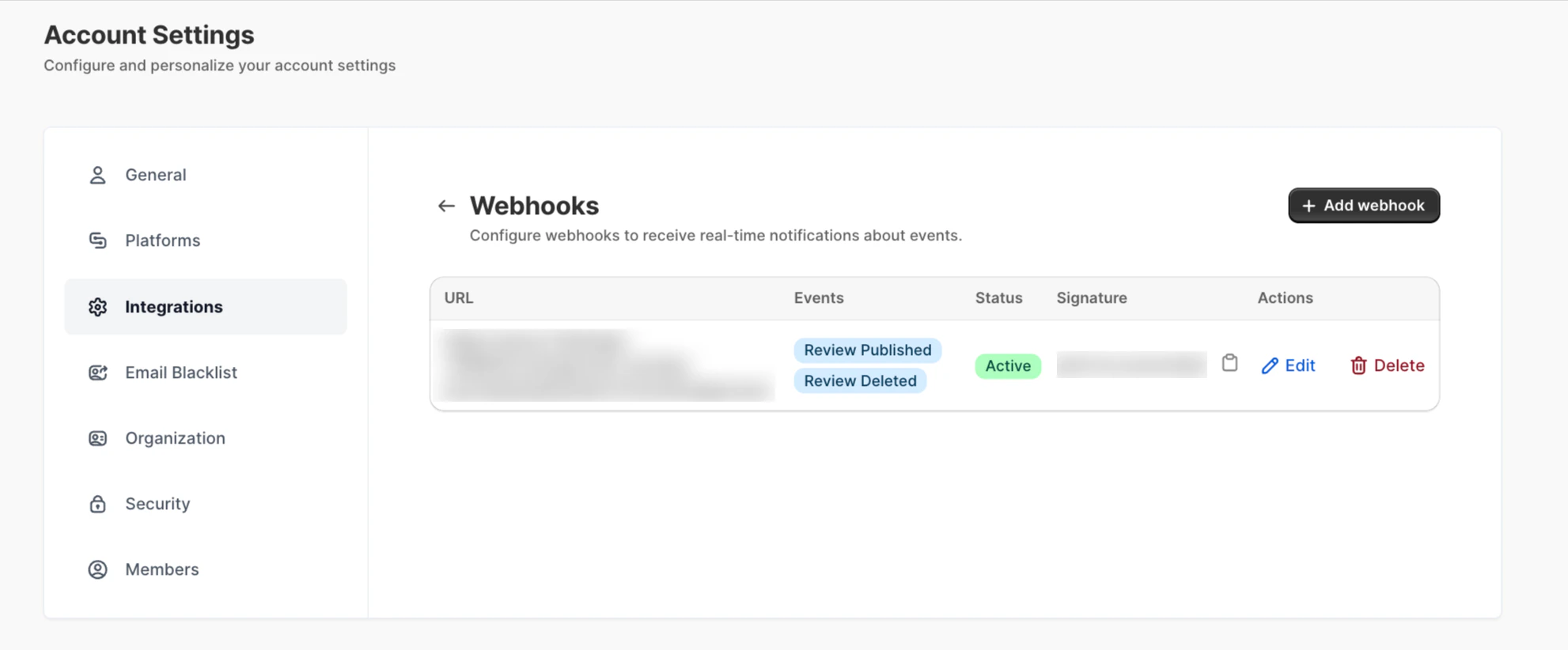
* Yuko generates a **Signature Key** after the webhook is created.
* Copy this key.
* Return to the **WPLoyalty add‑on page**.
* Paste the key into the **Secret Key** field.
* Paste the **Webhook URL** copied from the add‑on.
* Under **Webhook Events**, choose which events should trigger the webhook.
* You can select one or multiple events. Here are a few events listed:
**Review Submitted** – triggers when a customer submits a review.
**Review Published** – triggers when a review is approved/published.
**Review Deleted** – triggers when a review is removed.
For loyalty points, it’s usually best to select **Review Published**, so customers only earn points for approved reviews.
**3. Add the Secret Key**
* Yuko generates a **Signature Key** after the webhook is created.
* Copy this key.
* Return to the **WPLoyalty add‑on page**.
* Paste the key into the **Secret Key** field.
 ### How the Add‑On Works
Once the **WPLoyalty – Yuko Reviews Add-On** is active and the webhook is configured:
* Customers can earn **points/rewards** when the chosen webhook event(s) occur.
* For example, if you selected **Review Published**, points are awarded **only when reviews are approved**.
* If you select **Review Submitted**, points can be awarded immediately after submission, even before approval.
**Reminder:** Rewards happen **only via the add-on** and are triggered by the events you selected in Yuko’s advanced webhook settings.
***
### Quick Setup Checklist
Install WPLoyalty
Install & Activate the WPLoyalty – Yuko Reviews Add‑On
Copy Webhook URL from the add‑on page
Add Webhook URL in Yuko → Choose events
Copy Signature Key from Yuko
Paste Signature Key into the add‑on settings
***
This feature is available in Advanced and Growth Plans
### How the Add‑On Works
Once the **WPLoyalty – Yuko Reviews Add-On** is active and the webhook is configured:
* Customers can earn **points/rewards** when the chosen webhook event(s) occur.
* For example, if you selected **Review Published**, points are awarded **only when reviews are approved**.
* If you select **Review Submitted**, points can be awarded immediately after submission, even before approval.
**Reminder:** Rewards happen **only via the add-on** and are triggered by the events you selected in Yuko’s advanced webhook settings.
***
### Quick Setup Checklist
Install WPLoyalty
Install & Activate the WPLoyalty – Yuko Reviews Add‑On
Copy Webhook URL from the add‑on page
Add Webhook URL in Yuko → Choose events
Copy Signature Key from Yuko
Paste Signature Key into the add‑on settings
***
This feature is available in Advanced and Growth Plans