> ## Documentation Index
> Fetch the complete documentation index at: https://docs.yukoreviews.com/llms.txt
> Use this file to discover all available pages before exploring further.
# Importing from Judge.me Reviews
> Migrate your Judge.me reviews to Yuko with all photos, videos, and verified badges intact
## Migrate from Judge.me to Yuko Seamlessly
Switching from Judge.me to Yuko? Import all your existing reviews, photos, videos, and customer data in minutes. Our Judge.me import preserves your hard-earned social proof while giving you access to Yuko's advanced features and better pricing.
**What you'll achieve:**
* Import all Judge.me reviews automatically
* Preserve review photos and videos
* Maintain verified purchase badges
* Keep all star ratings and review dates
* Transfer customer testimonials intact
**Impact:** Judge.me import typically takes 10-60 minutes depending on review count and media files. All reviews, photos, and videos transfer automatically.
***
## Why Migrate from Judge.me to Yuko
**More capabilities, better UX**
* Advanced review workflows
* Better widgets and customization
* Q\&A functionality
* Review moderation tools
* Improved analytics
**Result:** More control and flexibility than Judge.me
**Save money, get more**
* More affordable plans
* Better value for features
* No hidden fees
* Scales with your business
**Result:** Lower costs while getting better features
**Everything transfers**
* All reviews (text, ratings)
* Photos and videos
* Verified purchase badges
* Review dates preserved
* Customer information
**Result:** No loss of social proof during switch
**Quick migration process**
* CSV export from Judge.me
* Upload to Yuko
* Automatic product matching
* Reviews live in under an hour
**Result:** Minimal downtime during migration
***
## Step-by-Step Import Instructions
Yuko Dashboard → **Reviews** → **Manage** **Reviews → Import from Judge.me**
**Download all your review data from Judge.me**
**Navigation in Judge.me:**
1. Log in to your Judge.me account
2. Click **Settings** in left sidebar
3. Scroll to **Export Reviews** section
4. Click **Export to CSV**
**Export options:**
**What to include:**
* ✅ All reviews (approved + pending)
* ✅ Review photos and videos
* ✅ Verified purchase status
* ✅ Review dates
* ✅ Reviewer information
* ✅ Product mappings (SKU or ID)
**Date range:**
* All time (recommended)
* Or specific date range if you only want recent reviews
**Export file:**
* Judge.me generates CSV file
* Download to your computer
* File typically named: `judgeme-reviews-export.csv`
* Size depends on review count (1KB - 50MB)
**What's included in CSV:**
```text theme={null}
product_sku, review_title, review_body, rating, reviewer_name,
reviewer_email, verified_buyer, review_date, photo_urls, video_urls
```
**Pro tip:** Export all reviews, even pending ones. You can filter in Yuko after import. Better to have everything than discover you're missing reviews later.
**Format Judge.me export for Yuko compatibility**
**Open CSV file:**
* Use Excel, Google Sheets, or text editor
* Review column headers
* Check data formatting
**Required columns for Yuko:**
* `product_id` or `product_sku` - Product identifier
* `rating` - Star rating (1-5)
* `review_text` - Review content
* `reviewer_name` - Customer name
* `date` - Review submission date (YYYY-MM-DD)
**Optional but recommended:**
* `email` - For verified purchase matching
* `title` - Review headline
* `verified` - true/false
* `photo_urls` - Comma-separated photo URLs
* `video_url` - Video URL
**Common formatting issues to fix:**
**Issue 1: Date format**
* Judge.me exports: `12/15/2023` or `2023-12-15T10:30:00`
* Yuko needs: `2023-12-15`
* Fix: Use Excel date formatting or find/replace
**Issue 2: Product SKU mismatch**
* Judge.me SKU might not match your current store
* Verify SKUs match Yuko product database
* Update CSV if needed before import
**Issue 3: Photo URLs**
* Ensure photo URLs start with `http://` or `https://`
* Multiple photos: Separate with pipe `|` character
* Example: `https://cdn.judgeme.com/photo1.jpg|https://cdn.judgeme.com/photo2.jpg`
**Issue 4: Special characters**
* Ensure CSV is UTF-8 encoded
* Handles international characters, emojis
* Save as "CSV UTF-8" in Excel
**Download Yuko CSV template:**
* Yuko provides Judge.me import template
* Shows exact column names needed
* Includes sample data
* Available in import wizard
**Best practice:** Don't edit review content. Only fix formatting (dates, URLs). Keep reviews exactly as customers wrote them for authenticity.
**Import your prepared CSV file**
**In Yuko Dashboard:**
1. Go to **Reviews** → **Manage** **Reviews → Import Reviews → Import from Judge.me**
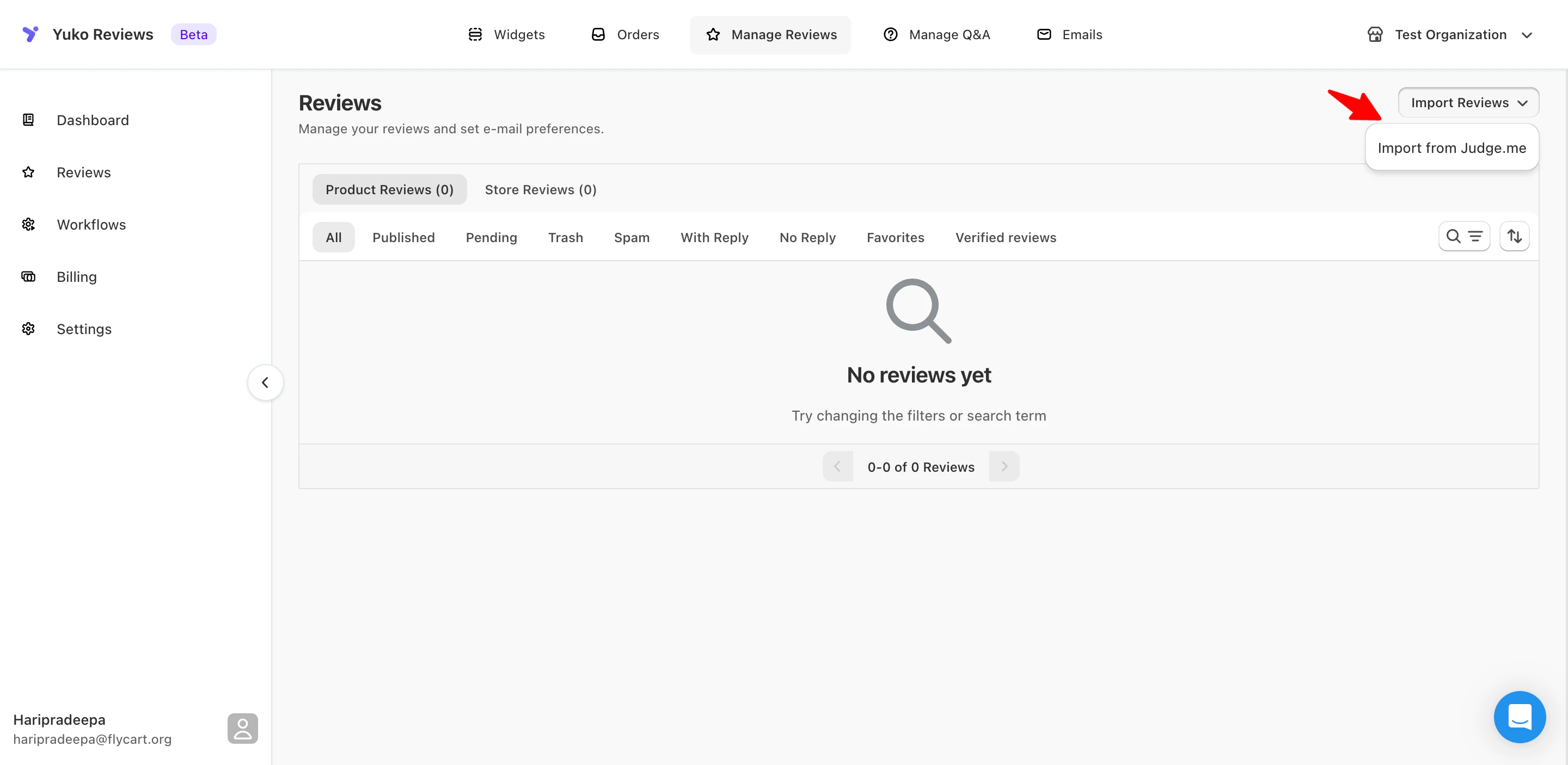 2. Select "**Import from Judge.me**"
3. Click "**Upload CSV File**"
2. Select "**Import from Judge.me**"
3. Click "**Upload CSV File**"
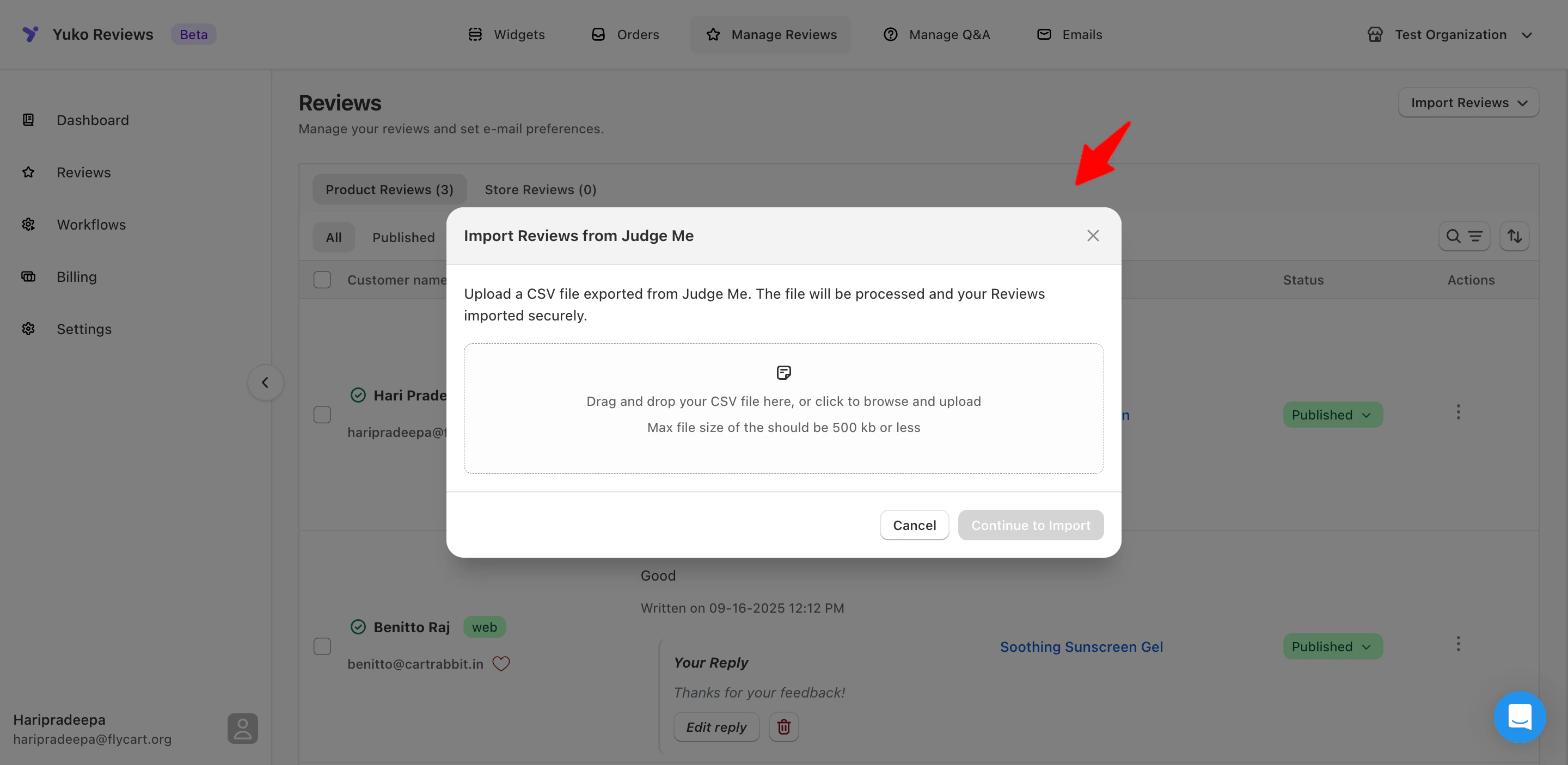 4. Choose your prepared CSV file
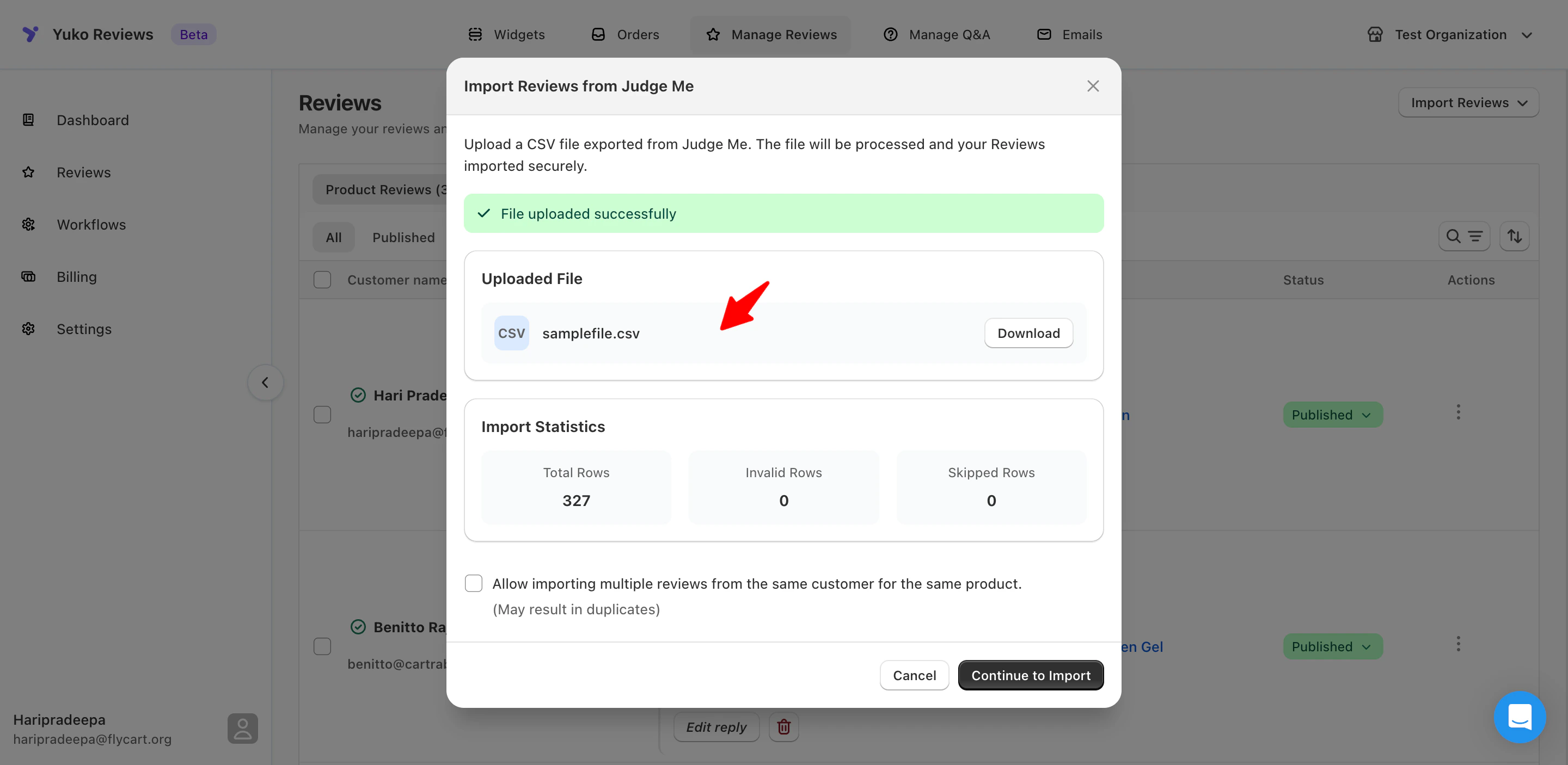 5. Click Continue to Import and confirm import
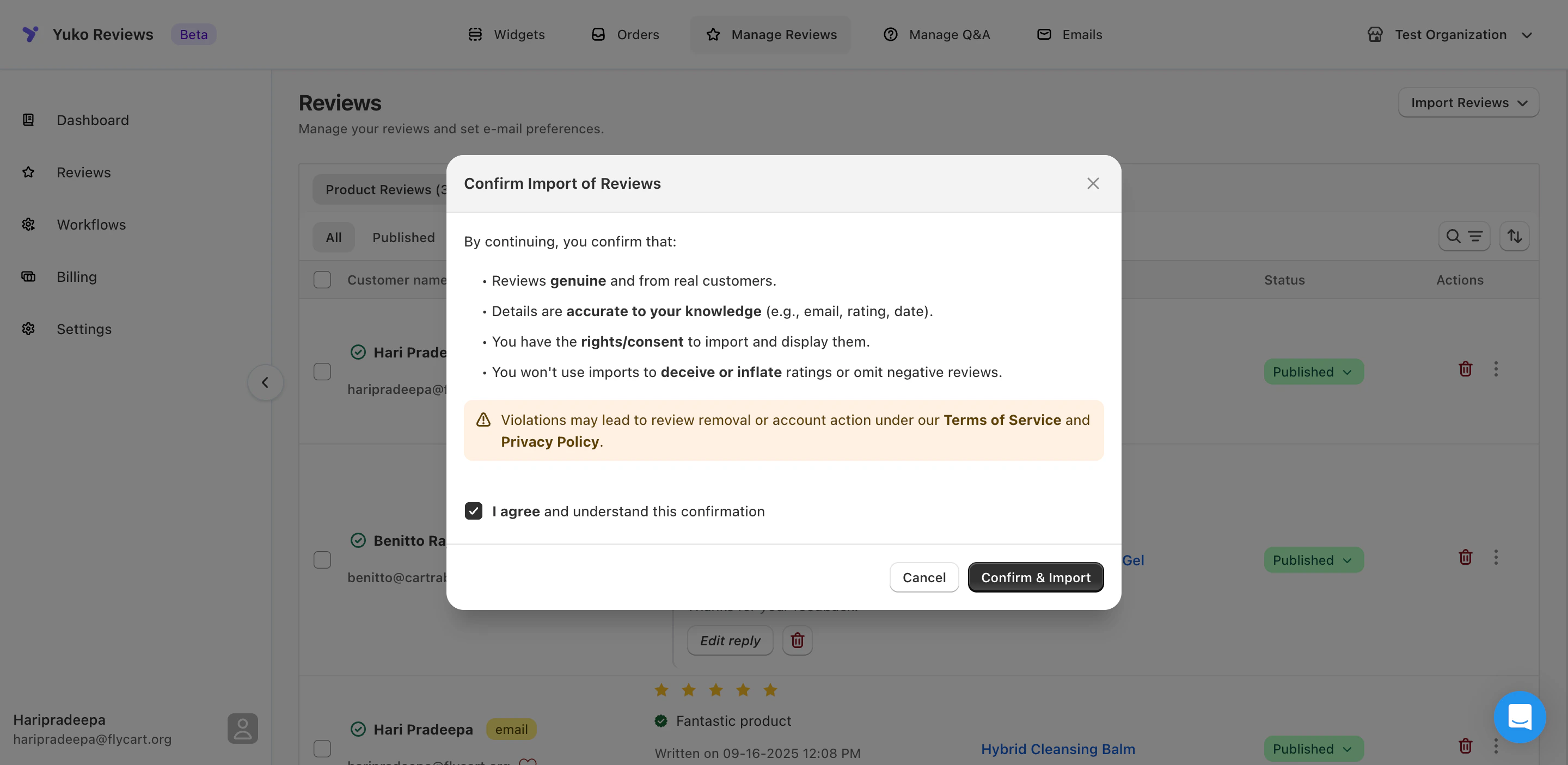 6. Wait for upload to complete
7. Import will be successful
### What Gets Imported from Judge.me
***
**After Import: Next Steps**
Install Yuko widgets to show reviews on your store.
**Required steps:**
1. Yuko Dashboard → Widgets
2. Install Product Review Widget
3. Install Star Rating Widget
4. Configure widget settings
5. Verify reviews displaying on product pages
[→ Widget installation guide](/display-reviews/introduction-to-widgets)
**Time:** 30-45 minutes
Remove Judge.me once Yuko is working.
**Before disabling:**
* ✅ All reviews verified in Yuko
* ✅ Photos displaying correctly
* ✅ Widgets installed and working
* ✅ Test for 1-2 weeks minimum
**How to disable Judge.me:**
1. Uninstall Judge.me app from store
2. Remove Judge.me widgets from theme
3. Cancel Judge.me subscription
4. Keep export file as backup
**Time:** 15 minutes
**Don't rush:** Keep Judge.me active for 1-2 weeks after import to ensure Yuko working perfectly. Monitor conversion rates before fully removing Judge.me.
## Need Help?
Talk to our team for personalized setup help
**Time:** 30 minutes
Reach our team at yukoreviews.com/support
**Response time:** Within 24 hours
Browse detailed guides for every feature
Connect Yuko with other tools
**Pro tip:** Keep your Judge.me CSV export file permanently as a backup. Even after successful import to Yuko, this file is your insurance policy and historical record of all customer reviews.
6. Wait for upload to complete
7. Import will be successful
### What Gets Imported from Judge.me
***
**After Import: Next Steps**
Install Yuko widgets to show reviews on your store.
**Required steps:**
1. Yuko Dashboard → Widgets
2. Install Product Review Widget
3. Install Star Rating Widget
4. Configure widget settings
5. Verify reviews displaying on product pages
[→ Widget installation guide](/display-reviews/introduction-to-widgets)
**Time:** 30-45 minutes
Remove Judge.me once Yuko is working.
**Before disabling:**
* ✅ All reviews verified in Yuko
* ✅ Photos displaying correctly
* ✅ Widgets installed and working
* ✅ Test for 1-2 weeks minimum
**How to disable Judge.me:**
1. Uninstall Judge.me app from store
2. Remove Judge.me widgets from theme
3. Cancel Judge.me subscription
4. Keep export file as backup
**Time:** 15 minutes
**Don't rush:** Keep Judge.me active for 1-2 weeks after import to ensure Yuko working perfectly. Monitor conversion rates before fully removing Judge.me.
## Need Help?
Talk to our team for personalized setup help
**Time:** 30 minutes
Reach our team at yukoreviews.com/support
**Response time:** Within 24 hours
Browse detailed guides for every feature
Connect Yuko with other tools
**Pro tip:** Keep your Judge.me CSV export file permanently as a backup. Even after successful import to Yuko, this file is your insurance policy and historical record of all customer reviews.