> ## Documentation Index
> Fetch the complete documentation index at: https://docs.yukoreviews.com/llms.txt
> Use this file to discover all available pages before exploring further.
> Set up automatic review request emails that get sent after customers fulfil their orders
# Review Request Email Setup
## Ask Every Customer for a Review Automatically
The Review Request Email is your primary tool for collecting customer feedback. Instead of hoping customers review on their own (only 1% do), this email automatically asks them after delivery, increasing review collection by 10x.
**What you'll achieve:**
* Automatically request reviews from every customer
* Collect reviews from 5-10% of customers (vs less than 1% without asking)
* Personalize emails with customer names and products
* Control timing to match your product type
**Time to set up:** 10 minutes | **Expected response rate:** 5-10% of customers
***
## How It Works
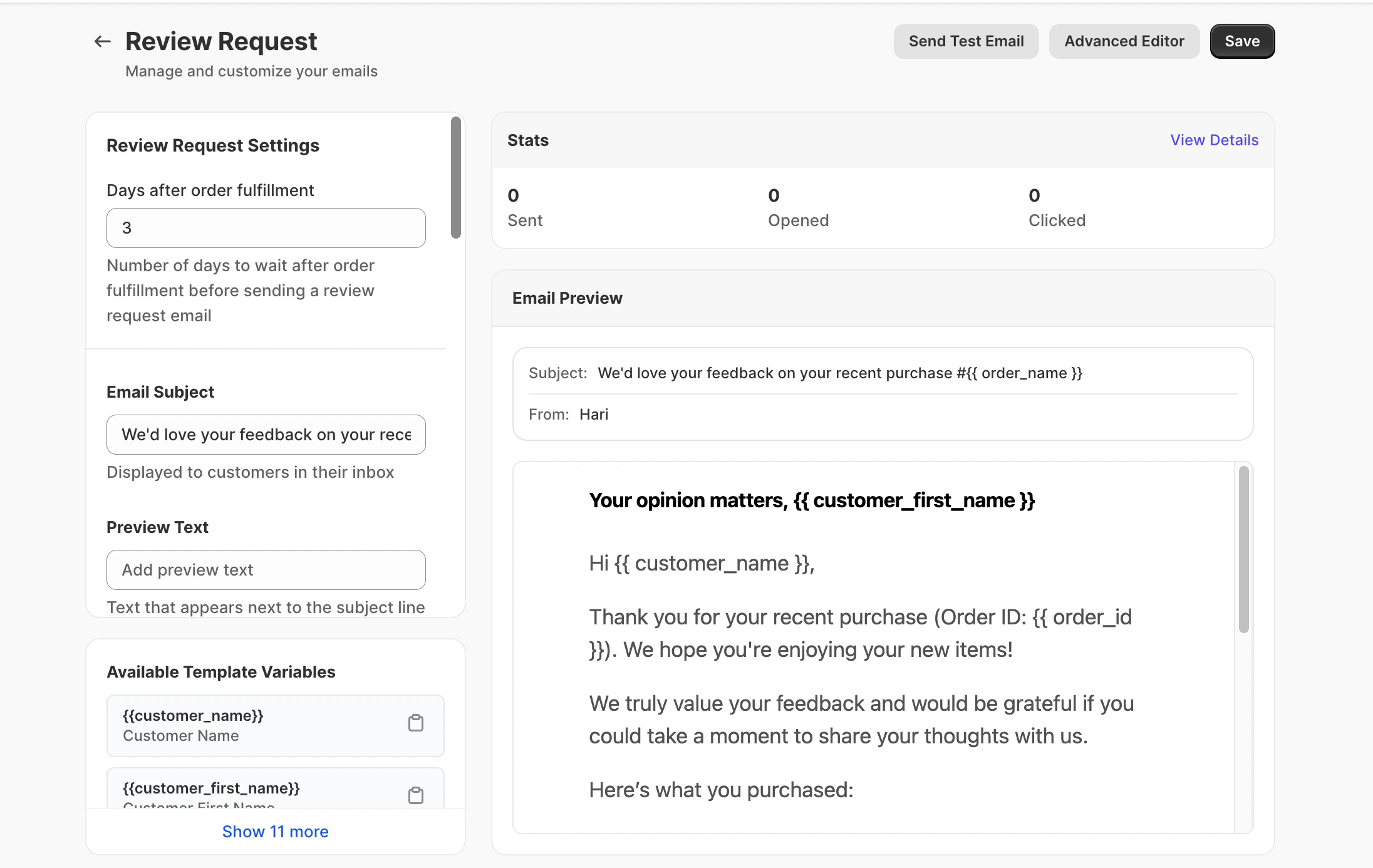
Yuko Dashboard → **Reviews → Emails → Review Request Email**
 ### The Automatic Process
You mark an order as "Completed" in WooCommerce (when customer receives it).
**This triggers the countdown** to send the review request.
Yuko waits the number of days you set.
**Why wait?** Customers need time to use the product before reviewing.
Customer receives personalized email with:
* Their name
* Products they ordered
* One-click link to review form
* Optional discount reward
**No manual work needed** - happens automatically for every order.
Customer clicks button, lands on review form, allows rating and writing review.
**Success rate:** 5-10% of customers complete the review.
***
**Setting:** Delay - Days after order fulfillment
### The Automatic Process
You mark an order as "Completed" in WooCommerce (when customer receives it).
**This triggers the countdown** to send the review request.
Yuko waits the number of days you set.
**Why wait?** Customers need time to use the product before reviewing.
Customer receives personalized email with:
* Their name
* Products they ordered
* One-click link to review form
* Optional discount reward
**No manual work needed** - happens automatically for every order.
Customer clicks button, lands on review form, allows rating and writing review.
**Success rate:** 5-10% of customers complete the review.
***
**Setting:** Delay - Days after order fulfillment
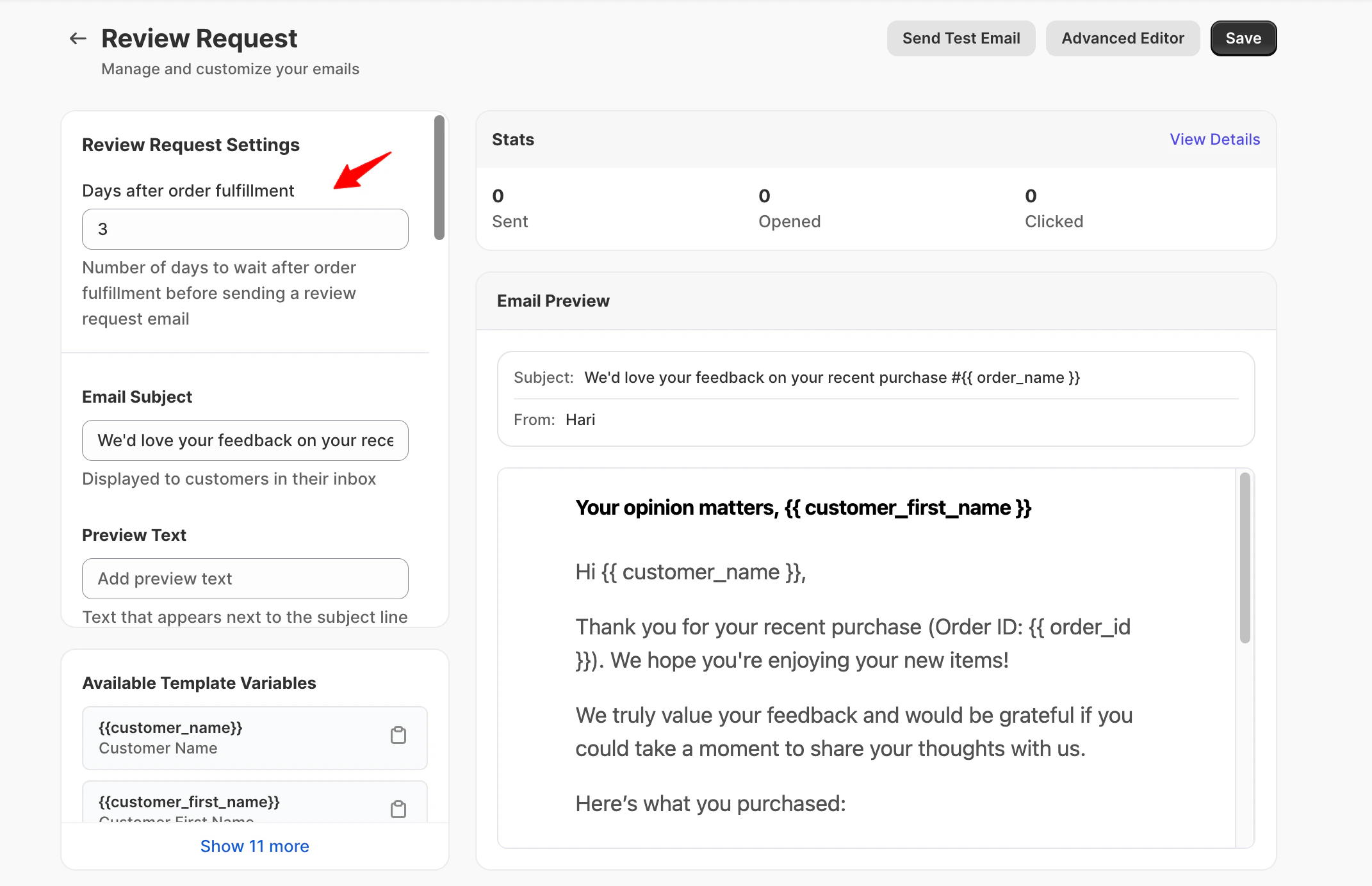
 **What it controls :** Set the number of days YUKO should wait **after an order is fulfilled** before sending the review request email.
This delay allows customers time to receive and use their products, helping them leave more meaningful and accurate reviews.
**How to choose the right timing:**
| Product Type | Recommended Delay | Reason |
| ------------------ | ----------------- | ------------------------------ |
| Clothing/Fashion | 5-7 days | Time to wear and wash |
| Electronics | 10-14 days | Time to unbox, set up, and use |
| Supplements/Health | 21-30 days | Time to see results |
| Books/Digital | 3-5 days | Quick to consume |
| Home Goods | 7-10 days | Time to set up and use |
| Food/Perishables | 3-5 days | Quick consumption |
| Furniture | 10-14 days | Time to assemble and use |
**Pro tip:** Don't send too soon. If you ask before customers use the product, they can't write a helpful review. Better to wait a bit longer than send too early.
**Setting:** Email Subject
**What it means:** The title customers see in their inbox before opening
**Best practices:**
✅ **Good subject lines:**
* How’s your order\_name?
* customer\_first\_name, share your thoughts on your order
* Quick question about your recent order
* We’d love your feedback on order\_name
### ❌ **Avoid:**
* "WRITE A REVIEW NOW" (too pushy)
* "Please leave us a 5-star review" (biased)
* Long subjects over 60 characters (get cut off on mobile)
* Generic "Review Request" (not personalized)
**Personalization tip:** Use `{{customer_first_name}}` in subject to increase open rates by 2x
**Mobile matters:** 60% of emails are opened on phones. Keep subject lines under 50 characters so they don't get cut off.
### What this setting does
Controls the short text that appears next to the subject line in inboxes.
### Best practices
* Use one short sentence
* Set expectations for what the email is about
* Avoid repeating the subject line
**Examples**
* *It only takes a minute*
* *Your feedback helps other shoppers*
* *Tell us how your order went*
### What this setting does
Sets the heading displayed at the top of the review request email.
### Best practices
* Friendly and appreciative tone
* Clear and simple wording
* No urgency or commands
**Examples**
* *How Was Your Order?*
* *We’d Love Your Feedback*
* *Tell Us What You Think*
### What makes a good review request email
* Clear and concise (no long explanations)
* Explains why the review matters
* One clear call to action
* Easy to complete on mobile
### Example message structure
```text theme={null}
Hi {{customer_first_name}},
Thanks for your recent order {{order_name}}.
We’d love to hear your thoughts — your feedback helps other customers make confident purchasing decisions.
Here’s what you purchased:
{{ product_reviews_block }}
Thanks for taking a moment to share your experience!
```
### What to avoid
* Asking for reviews before customers receive the product
* Long marketing copy
* Pressure or incentives language
* Multiple calls to action
\*\*What it controls: \*\*The closing content of the email.
This section automatically pulls details from:\
**Settings → Organization**
(Used in both review request and reminder emails.)
### Why this matters
* Required by law in most countries
* Builds trust with customers
* Reduces spam complaints
* Protects your sender reputation
### Best practices
* Make the unsubscribe link clear and visible
* Respect opt-outs immediately
* Keep wording neutral and respectful
***
## Available Shortcodes (Personalization Tags)
Make your emails personal by inserting customer and order information:
### Customer Information
**Use these to personalize greetings:**
* `{{customer_name}}` - Full name (John Smith)
* `{{customer_first_name}}` - First name only (John)
* `{{customer_last_name}}` - Last name only (Smith)
**Example:**
```text theme={null}
Hi {{customer_first_name}},
```
**Result:** "Hi John,"
Using first name in subject line or greeting increases open rates by 26% and response rates by 18%.
**Reference their specific order:**
* `{{order_id}}` - Order number (12345)
* `{{order_name}}` - Order reference (#WC-12345)
**Example:**
```text theme={null}
Thank you for order {{order_name}}!
```
**Result:** "Thank you for order #WC-12345!"
**Show the products they bought:**
**For all products in order:**
```text theme={null}
{{product_reviews_block}}
```
This displays a formatted block with all products, images, and review buttons.
**Loop through products individually:**
```text theme={null}
{% for item in order_items %}
{{item.review_block}}
{% endfor %}
```
This displays each product separately with its own review button.
**What customers see:** Product images, names, and a "Review this product" button for each item. Makes it easy to review multiple products.
**If offering a discount for reviewing:**
* `{{YOUR_IDENTIFIER:COUPON:CODE}}` - The coupon code
* `{{YOUR_IDENTIFIER:COUPON:TYPE}}` - Type (percentage, amount, free shipping)
* `{{YOUR_IDENTIFIER:COUPON:VALUE}}` - Value (10%, \$5, etc.)
* `{{YOUR_IDENTIFIER:COUPON:EXPIRY}}` - Expiration date
**Example:**
```text theme={null}
Use code {{REVIEW10:COUPON:CODE}} for {{REVIEW10:COUPON:VALUE}} off your next order!
```
**Result:** "Use code REVIEW10 for 10% off your next order!"
**Important:** If offering rewards, offer for completing the review, NOT for leaving a 5-star review. Incentivizing positive reviews is against most platform policies.
## Common Questions
**Industry benchmarks for review request emails:**
* **5-7%** = Good (average response rate)
* **8-12%** = Great (above average)
* **13-15%** = Excellent (top performers)
* **Below 3%** = Needs improvement
**Factors that affect your rate:**
* **Product quality** - Better products = more reviews
* **Customer satisfaction** - Happy customers review more
* **Email timing** - Right timing = better response
* **Email design** - Professional = higher trust
* **Subject line** - Personal = higher opens
* **Incentive** - Rewards = 2x response rate
**Starting out?** First month may be lower (3-5%) as customers get used to emails. Give it time to improve.
**Pros:**
* 2-3x higher response rate (5% → 10-15%)
* More detailed reviews (customers put in effort)
* Faster review collection
* Increased customer loyalty
**Cons:**
* Costs you money (10% discount per review)
* May attract only bargain hunters
* Some reviews may feel "bought"
* Violates policies if you ask for positive reviews only
**Our recommendation:**
* **New stores:** Offer incentive to build review base quickly
* **Established stores:** Use incentive only for photo reviews
* **Always:** Offer for honest feedback, not just 5 stars
**Typical incentives:**
* 10% off next order (most common)
* $5-$10 store credit
* Free shipping on next purchase
* Entry into monthly \$100 giveaway
**Should you email old customers?**
**Best practice:**
* **Recent customers (last 30-60 days):** Yes, send review requests
* **Older customers (60-90 days):** Maybe, if they haven't reviewed
* **Very old (90+ days):** No, they won't remember the product
**How to do it:**
1. Go to Yuko Dashboard → Customers
2. Filter by "No review" and "Last 60 days"
3. Send one-time review request (manual send)
**Don't:**
* Email customers from 6 months ago
* Spam customers who already reviewed
* Send multiple requests for same order
**Risk:** Emailing very old customers may result in spam complaints. Stick to recent orders (under 90 days).
**Two approaches:**
**Option 1: Single email with all products** (recommended)
* Send one email listing all products
* Customer can review one, some, or all
* Less email clutter for customer
* Use `{{product_reviews_block}}` shortcode
**Option 2: Separate email per product**
* Send individual emails for each product
* Good for very different product types
* Risk of annoying customers with too many emails
**Our recommendation:** Use single email with product review block. Customers appreciate less inbox clutter.
**Pro tip:** If order has 5+ products, consider asking for one "overall order review" instead of per-product reviews. Customers won't review 10 items individually.
**Always test before enabling:**
**Steps to test:**
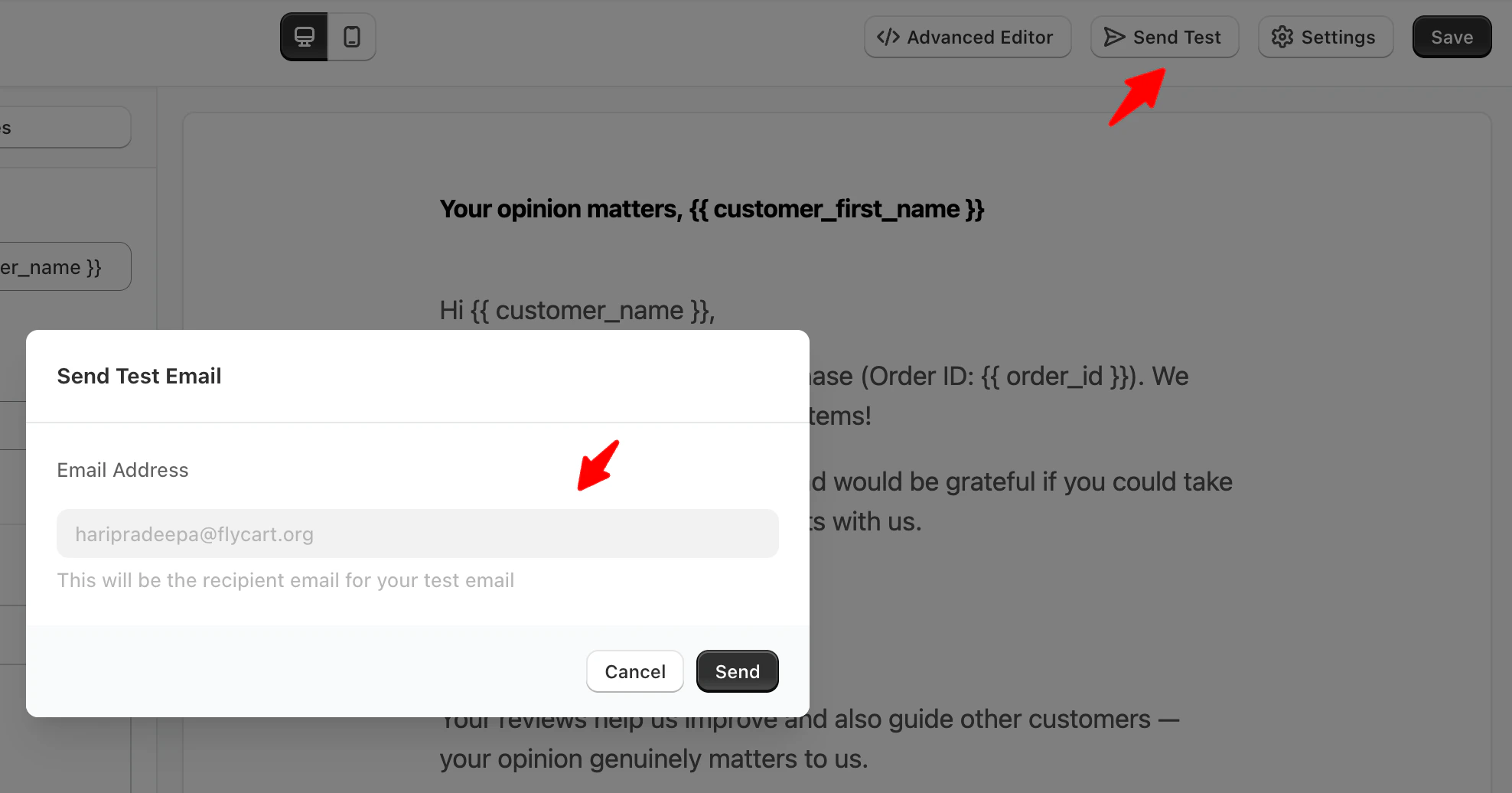
1. In Review Request Email settings, On the top right.
2. Click **"Send Test"**
3. Enter your email address
4. Click Send
**What it controls :** Set the number of days YUKO should wait **after an order is fulfilled** before sending the review request email.
This delay allows customers time to receive and use their products, helping them leave more meaningful and accurate reviews.
**How to choose the right timing:**
| Product Type | Recommended Delay | Reason |
| ------------------ | ----------------- | ------------------------------ |
| Clothing/Fashion | 5-7 days | Time to wear and wash |
| Electronics | 10-14 days | Time to unbox, set up, and use |
| Supplements/Health | 21-30 days | Time to see results |
| Books/Digital | 3-5 days | Quick to consume |
| Home Goods | 7-10 days | Time to set up and use |
| Food/Perishables | 3-5 days | Quick consumption |
| Furniture | 10-14 days | Time to assemble and use |
**Pro tip:** Don't send too soon. If you ask before customers use the product, they can't write a helpful review. Better to wait a bit longer than send too early.
**Setting:** Email Subject
**What it means:** The title customers see in their inbox before opening
**Best practices:**
✅ **Good subject lines:**
* How’s your order\_name?
* customer\_first\_name, share your thoughts on your order
* Quick question about your recent order
* We’d love your feedback on order\_name
### ❌ **Avoid:**
* "WRITE A REVIEW NOW" (too pushy)
* "Please leave us a 5-star review" (biased)
* Long subjects over 60 characters (get cut off on mobile)
* Generic "Review Request" (not personalized)
**Personalization tip:** Use `{{customer_first_name}}` in subject to increase open rates by 2x
**Mobile matters:** 60% of emails are opened on phones. Keep subject lines under 50 characters so they don't get cut off.
### What this setting does
Controls the short text that appears next to the subject line in inboxes.
### Best practices
* Use one short sentence
* Set expectations for what the email is about
* Avoid repeating the subject line
**Examples**
* *It only takes a minute*
* *Your feedback helps other shoppers*
* *Tell us how your order went*
### What this setting does
Sets the heading displayed at the top of the review request email.
### Best practices
* Friendly and appreciative tone
* Clear and simple wording
* No urgency or commands
**Examples**
* *How Was Your Order?*
* *We’d Love Your Feedback*
* *Tell Us What You Think*
### What makes a good review request email
* Clear and concise (no long explanations)
* Explains why the review matters
* One clear call to action
* Easy to complete on mobile
### Example message structure
```text theme={null}
Hi {{customer_first_name}},
Thanks for your recent order {{order_name}}.
We’d love to hear your thoughts — your feedback helps other customers make confident purchasing decisions.
Here’s what you purchased:
{{ product_reviews_block }}
Thanks for taking a moment to share your experience!
```
### What to avoid
* Asking for reviews before customers receive the product
* Long marketing copy
* Pressure or incentives language
* Multiple calls to action
\*\*What it controls: \*\*The closing content of the email.
This section automatically pulls details from:\
**Settings → Organization**
(Used in both review request and reminder emails.)
### Why this matters
* Required by law in most countries
* Builds trust with customers
* Reduces spam complaints
* Protects your sender reputation
### Best practices
* Make the unsubscribe link clear and visible
* Respect opt-outs immediately
* Keep wording neutral and respectful
***
## Available Shortcodes (Personalization Tags)
Make your emails personal by inserting customer and order information:
### Customer Information
**Use these to personalize greetings:**
* `{{customer_name}}` - Full name (John Smith)
* `{{customer_first_name}}` - First name only (John)
* `{{customer_last_name}}` - Last name only (Smith)
**Example:**
```text theme={null}
Hi {{customer_first_name}},
```
**Result:** "Hi John,"
Using first name in subject line or greeting increases open rates by 26% and response rates by 18%.
**Reference their specific order:**
* `{{order_id}}` - Order number (12345)
* `{{order_name}}` - Order reference (#WC-12345)
**Example:**
```text theme={null}
Thank you for order {{order_name}}!
```
**Result:** "Thank you for order #WC-12345!"
**Show the products they bought:**
**For all products in order:**
```text theme={null}
{{product_reviews_block}}
```
This displays a formatted block with all products, images, and review buttons.
**Loop through products individually:**
```text theme={null}
{% for item in order_items %}
{{item.review_block}}
{% endfor %}
```
This displays each product separately with its own review button.
**What customers see:** Product images, names, and a "Review this product" button for each item. Makes it easy to review multiple products.
**If offering a discount for reviewing:**
* `{{YOUR_IDENTIFIER:COUPON:CODE}}` - The coupon code
* `{{YOUR_IDENTIFIER:COUPON:TYPE}}` - Type (percentage, amount, free shipping)
* `{{YOUR_IDENTIFIER:COUPON:VALUE}}` - Value (10%, \$5, etc.)
* `{{YOUR_IDENTIFIER:COUPON:EXPIRY}}` - Expiration date
**Example:**
```text theme={null}
Use code {{REVIEW10:COUPON:CODE}} for {{REVIEW10:COUPON:VALUE}} off your next order!
```
**Result:** "Use code REVIEW10 for 10% off your next order!"
**Important:** If offering rewards, offer for completing the review, NOT for leaving a 5-star review. Incentivizing positive reviews is against most platform policies.
## Common Questions
**Industry benchmarks for review request emails:**
* **5-7%** = Good (average response rate)
* **8-12%** = Great (above average)
* **13-15%** = Excellent (top performers)
* **Below 3%** = Needs improvement
**Factors that affect your rate:**
* **Product quality** - Better products = more reviews
* **Customer satisfaction** - Happy customers review more
* **Email timing** - Right timing = better response
* **Email design** - Professional = higher trust
* **Subject line** - Personal = higher opens
* **Incentive** - Rewards = 2x response rate
**Starting out?** First month may be lower (3-5%) as customers get used to emails. Give it time to improve.
**Pros:**
* 2-3x higher response rate (5% → 10-15%)
* More detailed reviews (customers put in effort)
* Faster review collection
* Increased customer loyalty
**Cons:**
* Costs you money (10% discount per review)
* May attract only bargain hunters
* Some reviews may feel "bought"
* Violates policies if you ask for positive reviews only
**Our recommendation:**
* **New stores:** Offer incentive to build review base quickly
* **Established stores:** Use incentive only for photo reviews
* **Always:** Offer for honest feedback, not just 5 stars
**Typical incentives:**
* 10% off next order (most common)
* $5-$10 store credit
* Free shipping on next purchase
* Entry into monthly \$100 giveaway
**Should you email old customers?**
**Best practice:**
* **Recent customers (last 30-60 days):** Yes, send review requests
* **Older customers (60-90 days):** Maybe, if they haven't reviewed
* **Very old (90+ days):** No, they won't remember the product
**How to do it:**
1. Go to Yuko Dashboard → Customers
2. Filter by "No review" and "Last 60 days"
3. Send one-time review request (manual send)
**Don't:**
* Email customers from 6 months ago
* Spam customers who already reviewed
* Send multiple requests for same order
**Risk:** Emailing very old customers may result in spam complaints. Stick to recent orders (under 90 days).
**Two approaches:**
**Option 1: Single email with all products** (recommended)
* Send one email listing all products
* Customer can review one, some, or all
* Less email clutter for customer
* Use `{{product_reviews_block}}` shortcode
**Option 2: Separate email per product**
* Send individual emails for each product
* Good for very different product types
* Risk of annoying customers with too many emails
**Our recommendation:** Use single email with product review block. Customers appreciate less inbox clutter.
**Pro tip:** If order has 5+ products, consider asking for one "overall order review" instead of per-product reviews. Customers won't review 10 items individually.
**Always test before enabling:**
**Steps to test:**
1. In Review Request Email settings, On the top right.
2. Click **"Send Test"**
3. Enter your email address
4. Click Send
 5. Check your inbox (and spam folder)
6. Open on phone AND computer
7. Click all links to make sure they work
**What to check:**
* Subject line looks good
* Your name appears in greeting (personalization works)
* Products display correctly
* Review button works
* Mobile version looks professional
* Images load quickly
* No typos or broken links
**Test on multiple devices:** Check on iPhone, Android, desktop email clients (Gmail, Outlook, Apple Mail). They all display differently.
**Yes, but do it manually:**
Yuko doesn't have built-in A/B testing yet, but you can test yourself:
**Simple testing approach:**
1. **Week 1:** Use Subject Line A
2. **Week 2:** Use Subject Line B
3. **Compare:** Which had better response rate?
4. **Keep winner**, test something else
**What to test:**
* Subject lines (biggest impact)
* Email length (short vs detailed)
* Button text ("Review Now" vs "Share Feedback")
* Timing (7 days vs 10 days vs 14 days)
* Incentive amount (10% vs 15% vs \$10)
**How to measure:**
* Go to Reviews → Analytics (or count manually)
* Calculate: (Reviews received ÷ Emails sent) × 100 = Response rate %
**Pro tip:** Only test one thing at a time. If you change subject AND timing AND incentive, you won't know what worked.
***
## Next Steps
Set your delay, subject line, and message content.
**Time:** 5 minutes **Location:** Reviews → Emails → Review Request Email
Add personalization tags for customer names and products.
**Time:** 3 minutes **Use:** `{{customer_first_name}}` and `{{product_reviews_block}}`
Add your logo and colors to make emails professional using the Advanced Editor.
**Time:** 5 minutes
→ [Customize Email Branding](/display-reviews/branding)
Always test before enabling to make sure everything works.
**Time:** 2 minutes **Action:** Click "Send Test Email" button at bottom of settings
Turn on the email and watch reviews start coming in.
**Expected:** First reviews arrive 7-10 days after enabling (depending on your delay setting)
***
## Need Help?
**Pro tip:** Start with a 7-day delay for most products. After a month, check your response rate. If it's low ( less than 3%), try increasing the delay (customers may need more time) or adding a small incentive.
5. Check your inbox (and spam folder)
6. Open on phone AND computer
7. Click all links to make sure they work
**What to check:**
* Subject line looks good
* Your name appears in greeting (personalization works)
* Products display correctly
* Review button works
* Mobile version looks professional
* Images load quickly
* No typos or broken links
**Test on multiple devices:** Check on iPhone, Android, desktop email clients (Gmail, Outlook, Apple Mail). They all display differently.
**Yes, but do it manually:**
Yuko doesn't have built-in A/B testing yet, but you can test yourself:
**Simple testing approach:**
1. **Week 1:** Use Subject Line A
2. **Week 2:** Use Subject Line B
3. **Compare:** Which had better response rate?
4. **Keep winner**, test something else
**What to test:**
* Subject lines (biggest impact)
* Email length (short vs detailed)
* Button text ("Review Now" vs "Share Feedback")
* Timing (7 days vs 10 days vs 14 days)
* Incentive amount (10% vs 15% vs \$10)
**How to measure:**
* Go to Reviews → Analytics (or count manually)
* Calculate: (Reviews received ÷ Emails sent) × 100 = Response rate %
**Pro tip:** Only test one thing at a time. If you change subject AND timing AND incentive, you won't know what worked.
***
## Next Steps
Set your delay, subject line, and message content.
**Time:** 5 minutes **Location:** Reviews → Emails → Review Request Email
Add personalization tags for customer names and products.
**Time:** 3 minutes **Use:** `{{customer_first_name}}` and `{{product_reviews_block}}`
Add your logo and colors to make emails professional using the Advanced Editor.
**Time:** 5 minutes
→ [Customize Email Branding](/display-reviews/branding)
Always test before enabling to make sure everything works.
**Time:** 2 minutes **Action:** Click "Send Test Email" button at bottom of settings
Turn on the email and watch reviews start coming in.
**Expected:** First reviews arrive 7-10 days after enabling (depending on your delay setting)
***
## Need Help?
**Pro tip:** Start with a 7-day delay for most products. After a month, check your response rate. If it's low ( less than 3%), try increasing the delay (customers may need more time) or adding a small incentive.