> ## Documentation Index
> Fetch the complete documentation index at: https://docs.yukoreviews.com/llms.txt
> Use this file to discover all available pages before exploring further.
# Customizing Review Form Inputs
> Tailor your review forms to fit your brand tone and gather the right insights from customers
## Collect Exactly the Feedback You Need
Customize every field in your review collection forms to match your brand voice and gather specific insights. Whether customers are submitting reviews via email or on your website, you control what information they provide and how the form looks.
**What you'll achieve:**
* Match review forms to your brand style and tone
* Collect specific feedback relevant to your products
* Control which fields are required vs optional
* Reduce form abandonment with smart field choices
* Gather richer, more detailed customer reviews
**Impact:** Customized review forms collect 30-40% more detailed feedback and see 20% higher completion rates than generic forms
***
## Why Customize Review Form Inputs
Generic review forms miss opportunities to gather valuable, specific feedback:
**What happens with default settings:**
* Generic placeholder text ("Write your review\...")
* Irrelevant questions for your product type
* Too many required fields (abandonment)
* No brand personality
* Misses product-specific insights
**Result:** Short, vague reviews like "Great product!"
**What happens with customization:**
* Brand-specific tone and language
* Targeted questions for your products
* Optimized required vs optional fields
* Matches your site design
* Collects actionable insights
**Result:** Detailed reviews with specific, helpful information
**Example:** A clothing brand asking "How does it fit?" gets 3x more sizing details than asking "What do you think?" — and sizing info reduces returns by 15-25%.
***
## How to Access Review Form Customization
Yuko Dashboard → **Reviews →Widgets → Review Collection Form -> Customise**
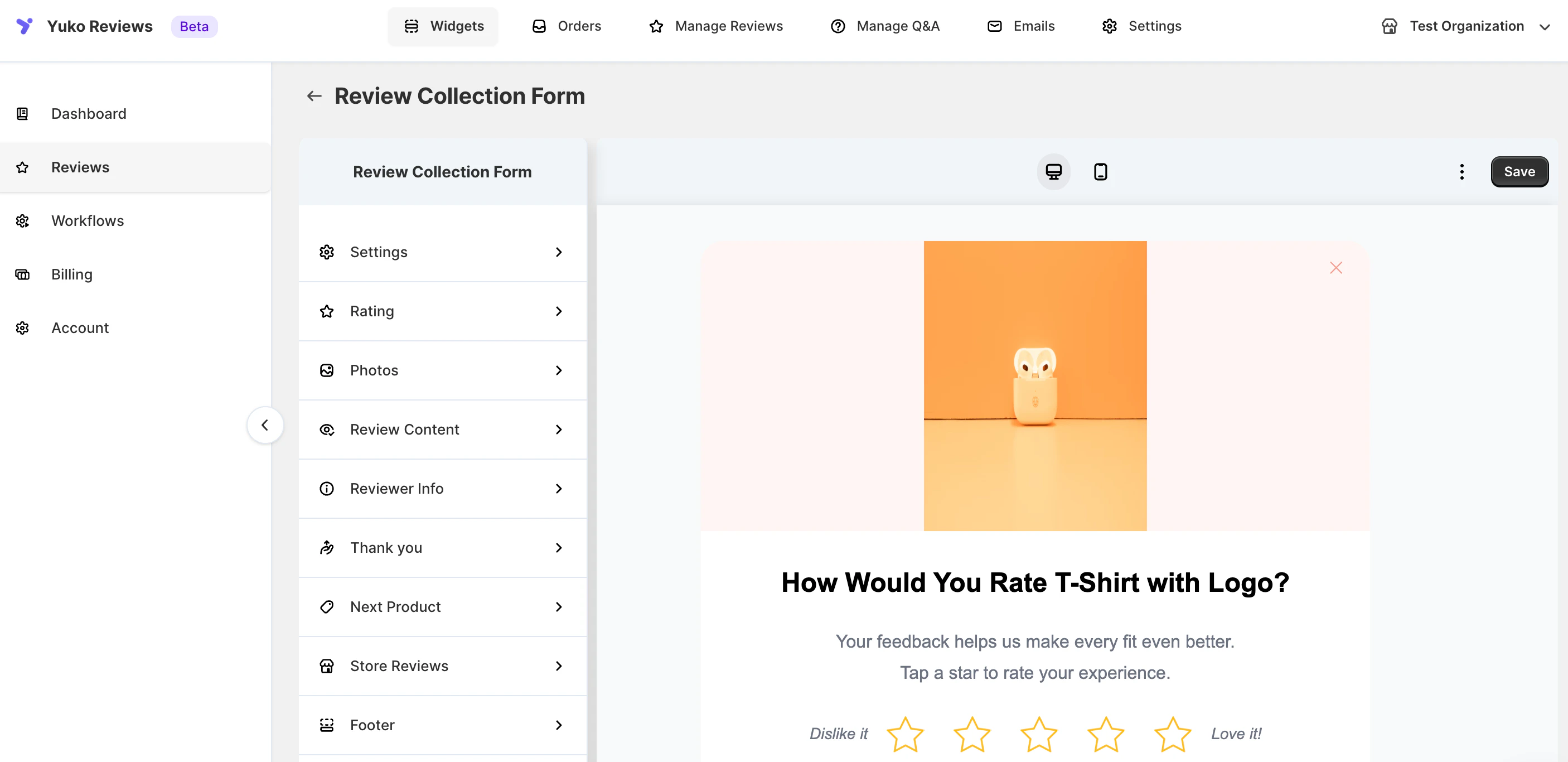 In the Review Collection Form settings, you'll see customization sections:
* Rating display
* Photo uploads
* Review content fields
* Reviewer information
* Thank you message
* Next product prompts
* Footer text
* Advanced styling (CSS)
Work through each section, adjusting:
* Field labels and placeholder text
* Required vs optional settings
* Character limits and validation rules
* Display order and visual styling
* Help text and examples
**Save changes** after each section or at the end.
Use the preview function to see how your form looks:
* Desktop view
* Mobile view
* Email vs on-site versions
* Test form submission
**Test thoroughly** before going live.
Activate your customized review form and track results:
* Completion rate (target: 60%+)
* Average review length (target: 50+ words)
* Photo upload rate (target: 15-30%)
* Time to complete (target: under 2 minutes)
**Adjust based on data** — if completion rate drops, you may have too many required fields.
## Form Customization Options
YUKO lets you fully customize the review form so it matches your brand and encourages more customers to submit reviews. Each section of the form can be styled and edited independently to improve clarity, trust, and conversion rates.
This guide explains **what each customization section controls** and **best practices for configuring it**.
* **Controls:**\
The overall appearance of the review form dialog.
### Customizable Elements
* Background color
* Rating icon color
* Title text color
* Description text color
* Button background color
* Button text color
* Input border color
* Input label color
* Error message color
### Best Practices
* Match dialog colors with your store’s primary brand colors
* Ensure sufficient contrast between text and background
* Use a clear, attention-grabbing button color for primary actions
* Keep error colors noticeable but not overwhelming
**Pro Tip:** Matching the review form design with your checkout page increases trust and completion rates.
**Controls:**\
How customers submit star ratings.
**Customizable Elements**
* Rating question text
* Supporting description text
* Optional lowest rating label
* Optional highest rating label
### Best Practices
* Keep the rating question short and neutral
* Use friendly, positive language for the highest rating
* Avoid aggressive or negative wording for the lowest rating
* Do not use leading questions that bias responses
**Avoid:** Questions like *“How much did you LOVE this product?”*—they reduce review authenticity.
**Controls:**\
Photo uploads within the review form.
### Customizable Elements
* Section title
* Section description
* Upload button text
* Image upload helper text
### Best Practices
* Make photo uploads optional
* Use encouraging, benefit-focused language
* Keep upload instructions simple
* Ensure uploads are mobile-friendly
**Tip:** Photo sections perform best when placed immediately after the rating step.
**Controls:**\
Written feedback submitted by the customer.
### Customizable Elements
* Section title
* Subtitle or helper text
* Review content placeholder text
* Review title field (optional)
* Review title placeholder text
### Best Practices
* Use open-ended prompts to encourage honest feedback
* Keep placeholders short and helpful
* Optional review text increases submission volume
* Optional review titles help highlight key points in reviews
**Controls:**\
Customer identity and verification fields.
### Customizable Elements
* Section title
* Section description
* First name label and placeholder
* Last name label and placeholder
* Email label and placeholder
* Review disclaimer text
* Enable anonymous reviews
### Best Practices
* Always explain why email is collected
* Reassure customers that emails are not shown publicly
* Keep identity fields minimal to reduce friction
* Enable anonymous reviews if you want higher submission rates
**Note:** Displaying clear privacy and terms information builds trust and reduces drop-offs.
**Controls:**\
What customers see after submitting a review.
### Customizable Elements
* Thank-you title
* Thank-you description
* Primary action button text
### Best Practices
* Thank customers genuinely
* Confirm the review was submitted successfully
* Use a positive, celebratory tone
* Offer a clear next action without pressure
**Controls:**\
Encourages customers to review additional purchased items.
### Customizable Elements
* Section title
* Description text
* Review button text
### Best Practices
* Keep the messaging optional and friendly
* Avoid urgency or sales language
* Use this to increase reviews per customer session
**Controls:**\
Collect feedback about the overall shopping experience.
### Customizable Elements
* Enable store reviews
* Product review completion message
* Store review intro title and subtitle
* Store review photo slide (optional)
* Store review content prompt
* Collect review title
* Enable anonymous store reviews
### Best Practices
* Clearly differentiate store reviews from product reviews
* Ask about shipping, support, and overall experience
* Keep store review prompts neutral and open-ended
* Optional photo uploads increase engagement
**Controls:**\
Navigation buttons displayed throughout the review flow.
### Customizable Elements
* Footer text
* Skip button text
* Back button text
* Continue button text
* Submit button text
### Best Practices
* Use familiar, intuitive labels
* Keep “Skip” visible but not dominant
* Avoid pushy or sales-oriented wording
**Controls:**\
Fine-grained styling using custom CSS.
### Customizable Elements
* Enable custom CSS
* CSS editor for overrides
### Common Use Cases
* Match exact brand guidelines
* Adjust spacing, borders, or animations
* Override typography
* Customize responsive behavior
### Best Practices
* Test changes in staging before publishing
* Ensure accessibility is not affected
* Re-check mobile layouts
* Monitor form completion rates after changes
**Warning:** Incorrect CSS may break the review widget. Keep overrides minimal and well-tested.
***
## Next Steps
Set up your review form fields based on your product type and brand.
**Time:** 30 minutes **Current page:** You are here
Test your customized review form on desktop and mobile before going live.
**Time:** 10 minutes **Action:** Use preview mode, submit test review
Track completion rate, review length, and photo uploads to optimize.
**Time:** Ongoing **Target metrics:** 70%+ completion, 50+ words average, 20%+ photos
Configure automated emails to request reviews from customers after purchase.
**Time:** 15 minutes → [Review request email setup](/collect-reviews/review-request-emails)
## Need Help?
Talk to our team for personalized setup help
**Time:** 30 minutes
Reach our team at yukoreviews.com/support
**Response time:** Within 24 hours
Browse detailed guides for every feature
Connect Yuko with other tools
**Pro tip:** Start simple with basic fields, launch, and collect 50+ reviews. Then analyze what information is missing and add 1-2 custom fields based on actual needs. Don't over-customize upfront.
In the Review Collection Form settings, you'll see customization sections:
* Rating display
* Photo uploads
* Review content fields
* Reviewer information
* Thank you message
* Next product prompts
* Footer text
* Advanced styling (CSS)
Work through each section, adjusting:
* Field labels and placeholder text
* Required vs optional settings
* Character limits and validation rules
* Display order and visual styling
* Help text and examples
**Save changes** after each section or at the end.
Use the preview function to see how your form looks:
* Desktop view
* Mobile view
* Email vs on-site versions
* Test form submission
**Test thoroughly** before going live.
Activate your customized review form and track results:
* Completion rate (target: 60%+)
* Average review length (target: 50+ words)
* Photo upload rate (target: 15-30%)
* Time to complete (target: under 2 minutes)
**Adjust based on data** — if completion rate drops, you may have too many required fields.
## Form Customization Options
YUKO lets you fully customize the review form so it matches your brand and encourages more customers to submit reviews. Each section of the form can be styled and edited independently to improve clarity, trust, and conversion rates.
This guide explains **what each customization section controls** and **best practices for configuring it**.
* **Controls:**\
The overall appearance of the review form dialog.
### Customizable Elements
* Background color
* Rating icon color
* Title text color
* Description text color
* Button background color
* Button text color
* Input border color
* Input label color
* Error message color
### Best Practices
* Match dialog colors with your store’s primary brand colors
* Ensure sufficient contrast between text and background
* Use a clear, attention-grabbing button color for primary actions
* Keep error colors noticeable but not overwhelming
**Pro Tip:** Matching the review form design with your checkout page increases trust and completion rates.
**Controls:**\
How customers submit star ratings.
**Customizable Elements**
* Rating question text
* Supporting description text
* Optional lowest rating label
* Optional highest rating label
### Best Practices
* Keep the rating question short and neutral
* Use friendly, positive language for the highest rating
* Avoid aggressive or negative wording for the lowest rating
* Do not use leading questions that bias responses
**Avoid:** Questions like *“How much did you LOVE this product?”*—they reduce review authenticity.
**Controls:**\
Photo uploads within the review form.
### Customizable Elements
* Section title
* Section description
* Upload button text
* Image upload helper text
### Best Practices
* Make photo uploads optional
* Use encouraging, benefit-focused language
* Keep upload instructions simple
* Ensure uploads are mobile-friendly
**Tip:** Photo sections perform best when placed immediately after the rating step.
**Controls:**\
Written feedback submitted by the customer.
### Customizable Elements
* Section title
* Subtitle or helper text
* Review content placeholder text
* Review title field (optional)
* Review title placeholder text
### Best Practices
* Use open-ended prompts to encourage honest feedback
* Keep placeholders short and helpful
* Optional review text increases submission volume
* Optional review titles help highlight key points in reviews
**Controls:**\
Customer identity and verification fields.
### Customizable Elements
* Section title
* Section description
* First name label and placeholder
* Last name label and placeholder
* Email label and placeholder
* Review disclaimer text
* Enable anonymous reviews
### Best Practices
* Always explain why email is collected
* Reassure customers that emails are not shown publicly
* Keep identity fields minimal to reduce friction
* Enable anonymous reviews if you want higher submission rates
**Note:** Displaying clear privacy and terms information builds trust and reduces drop-offs.
**Controls:**\
What customers see after submitting a review.
### Customizable Elements
* Thank-you title
* Thank-you description
* Primary action button text
### Best Practices
* Thank customers genuinely
* Confirm the review was submitted successfully
* Use a positive, celebratory tone
* Offer a clear next action without pressure
**Controls:**\
Encourages customers to review additional purchased items.
### Customizable Elements
* Section title
* Description text
* Review button text
### Best Practices
* Keep the messaging optional and friendly
* Avoid urgency or sales language
* Use this to increase reviews per customer session
**Controls:**\
Collect feedback about the overall shopping experience.
### Customizable Elements
* Enable store reviews
* Product review completion message
* Store review intro title and subtitle
* Store review photo slide (optional)
* Store review content prompt
* Collect review title
* Enable anonymous store reviews
### Best Practices
* Clearly differentiate store reviews from product reviews
* Ask about shipping, support, and overall experience
* Keep store review prompts neutral and open-ended
* Optional photo uploads increase engagement
**Controls:**\
Navigation buttons displayed throughout the review flow.
### Customizable Elements
* Footer text
* Skip button text
* Back button text
* Continue button text
* Submit button text
### Best Practices
* Use familiar, intuitive labels
* Keep “Skip” visible but not dominant
* Avoid pushy or sales-oriented wording
**Controls:**\
Fine-grained styling using custom CSS.
### Customizable Elements
* Enable custom CSS
* CSS editor for overrides
### Common Use Cases
* Match exact brand guidelines
* Adjust spacing, borders, or animations
* Override typography
* Customize responsive behavior
### Best Practices
* Test changes in staging before publishing
* Ensure accessibility is not affected
* Re-check mobile layouts
* Monitor form completion rates after changes
**Warning:** Incorrect CSS may break the review widget. Keep overrides minimal and well-tested.
***
## Next Steps
Set up your review form fields based on your product type and brand.
**Time:** 30 minutes **Current page:** You are here
Test your customized review form on desktop and mobile before going live.
**Time:** 10 minutes **Action:** Use preview mode, submit test review
Track completion rate, review length, and photo uploads to optimize.
**Time:** Ongoing **Target metrics:** 70%+ completion, 50+ words average, 20%+ photos
Configure automated emails to request reviews from customers after purchase.
**Time:** 15 minutes → [Review request email setup](/collect-reviews/review-request-emails)
## Need Help?
Talk to our team for personalized setup help
**Time:** 30 minutes
Reach our team at yukoreviews.com/support
**Response time:** Within 24 hours
Browse detailed guides for every feature
Connect Yuko with other tools
**Pro tip:** Start simple with basic fields, launch, and collect 50+ reviews. Then analyze what information is missing and add 1-2 custom fields based on actual needs. Don't over-customize upfront.