> ## Documentation Index
> Fetch the complete documentation index at: https://docs.yukoreviews.com/llms.txt
> Use this file to discover all available pages before exploring further.
> Easily update your logo to ensure consistent branding in emails and review displays.
# Updating Logo
### **Navigation**
Yuko Dashboard → **Settings → Account → Branding**
 ### **Overview**
Your logo is automatically used across your review request emails, review forms, and widget headers.\
This helps maintain visual consistency and build customer trust.
### **Steps to Upload or Update Your Logo**
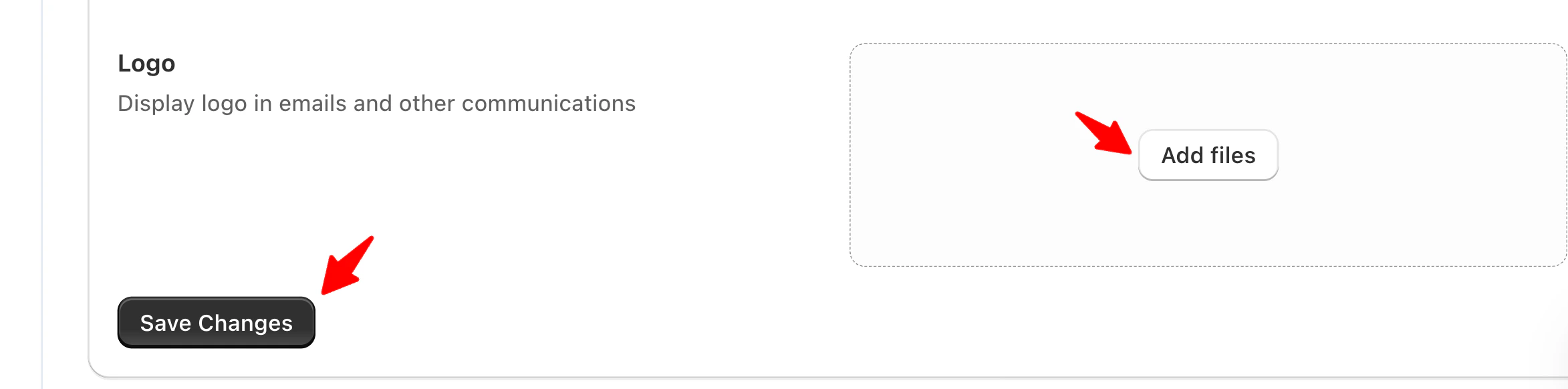
1. Go to **Account → General → Logo**
2. Click **Add files**.
### **Overview**
Your logo is automatically used across your review request emails, review forms, and widget headers.\
This helps maintain visual consistency and build customer trust.
### **Steps to Upload or Update Your Logo**
1. Go to **Account → General → Logo**
2. Click **Add files**.
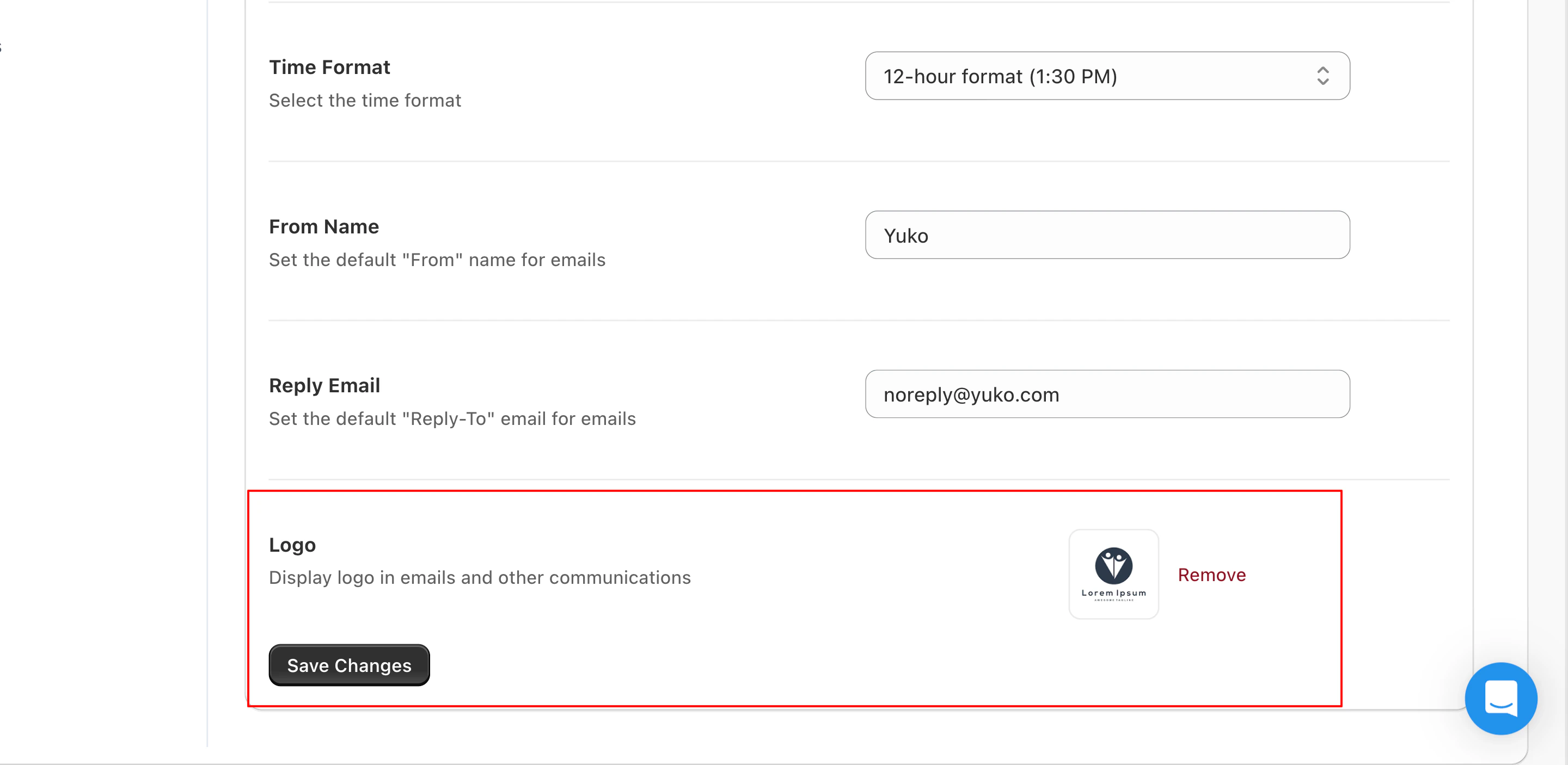 3. Select your image file (JPG, PNG, or SVG supported).
4. Adjust sizing or cropping if needed.
Click **Save** **Changes** to confirm changes.
\
**Recommended Image Specs**
| **Type** | **Recommended Size** | **Format** |
| :--------------- | :------------------- | :--------- |
| **Primary Logo** | 400×120 px | PNG or SVG |
| **Email Logo** | 200×60 px | PNG |
| **Widget Logo** | Auto-resized | PNG or SVG |
**Tip:**\
Use a transparent PNG or SVG logo to ensure it looks crisp on both light and dark themes.
3. Select your image file (JPG, PNG, or SVG supported).
4. Adjust sizing or cropping if needed.
Click **Save** **Changes** to confirm changes.
\
**Recommended Image Specs**
| **Type** | **Recommended Size** | **Format** |
| :--------------- | :------------------- | :--------- |
| **Primary Logo** | 400×120 px | PNG or SVG |
| **Email Logo** | 200×60 px | PNG |
| **Widget Logo** | Auto-resized | PNG or SVG |
**Tip:**\
Use a transparent PNG or SVG logo to ensure it looks crisp on both light and dark themes.