> ## Documentation Index
> Fetch the complete documentation index at: https://docs.yukoreviews.com/llms.txt
> Use this file to discover all available pages before exploring further.
# Account Settings
> Manage your Yuko account details, preferences, and subscription settings in one place.
### **Navigation**
**Yuko Dashboard → Account → General**
 **Overview**
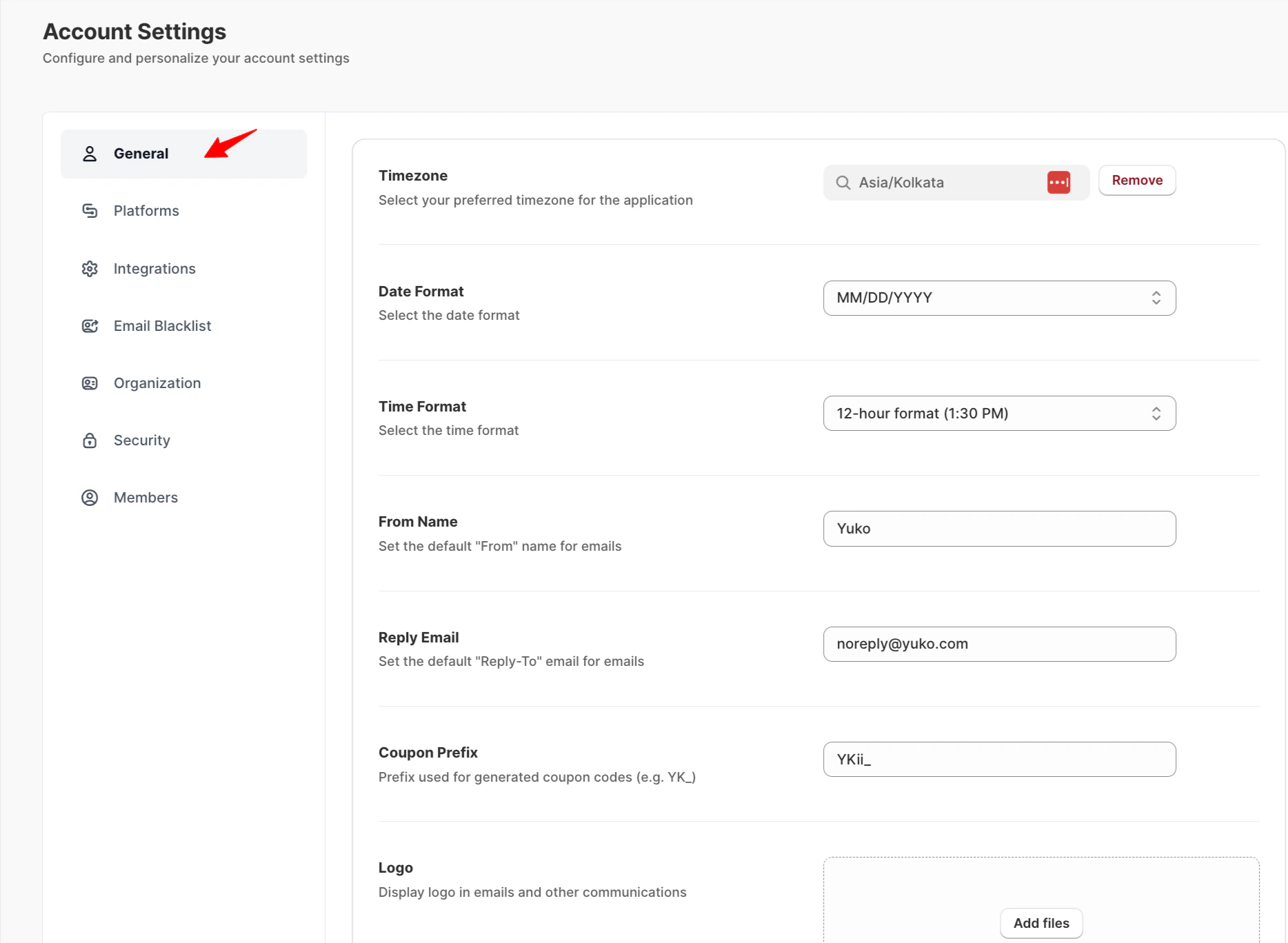
Manage your organization’s global settings to ensure consistent communication and accurate time preferences.\
From email sender details to time zone configuration, these settings apply across all Yuko emails and activities.
### **General Settings**
| **Setting** | **Description** |
| :-------------- | :------------------------------------------------------------------------------------------ |
| **Timezone** | Choose your preferred time zone for all application activities and email scheduling. |
| **Date Format** | Select how dates are displayed (e.g., MM/DD/YYYY). |
| **Time Format** | Choose between a 12-hour or **24-hour** time display. |
| **From Name** | Define the sender name that appears in outgoing emails (e.g., “Yuko” or your brand name). |
| **Reply Email** | Specify the default “Reply-To” email address for responses (e.g., `noreply@yourstore.com`). |
| **Logo** | Upload your company logo to appear in emails and other communications. |
### **Accessing Account General Settings**
1. Log in to your **Yuko Dashboard**.
2. Navigate to **Account → General**.
### **Configurable Fields**
* **Time Zone:**\
Select your local time zone. This ensures timestamps on reviews, notifications, and dashboards are accurate.
* **Date Format:**\
Choose your preferred format (e.g., `DD/MM/YYYY` or `MM/DD/YYYY`). This format will be used throughout your dashboard and in exported reports.
* **Time Format:**\
Select between **12-hour** or **24-hour** formats for displaying time.
* **From Name:**\
The default name displayed when Yuko sends emails to customers. Example: “Your Store Team.”
* **Reply Email:**\
The default email address customers can reply to for review notifications.
### **Tips**
* Keep your **From Name and Reply Email** consistent with your store branding to improve open rates.
* If you manage multiple time zones, ensure your **Time Zone** reflects your primary operational region.
**Overview**
Manage your organization’s global settings to ensure consistent communication and accurate time preferences.\
From email sender details to time zone configuration, these settings apply across all Yuko emails and activities.
### **General Settings**
| **Setting** | **Description** |
| :-------------- | :------------------------------------------------------------------------------------------ |
| **Timezone** | Choose your preferred time zone for all application activities and email scheduling. |
| **Date Format** | Select how dates are displayed (e.g., MM/DD/YYYY). |
| **Time Format** | Choose between a 12-hour or **24-hour** time display. |
| **From Name** | Define the sender name that appears in outgoing emails (e.g., “Yuko” or your brand name). |
| **Reply Email** | Specify the default “Reply-To” email address for responses (e.g., `noreply@yourstore.com`). |
| **Logo** | Upload your company logo to appear in emails and other communications. |
### **Accessing Account General Settings**
1. Log in to your **Yuko Dashboard**.
2. Navigate to **Account → General**.
### **Configurable Fields**
* **Time Zone:**\
Select your local time zone. This ensures timestamps on reviews, notifications, and dashboards are accurate.
* **Date Format:**\
Choose your preferred format (e.g., `DD/MM/YYYY` or `MM/DD/YYYY`). This format will be used throughout your dashboard and in exported reports.
* **Time Format:**\
Select between **12-hour** or **24-hour** formats for displaying time.
* **From Name:**\
The default name displayed when Yuko sends emails to customers. Example: “Your Store Team.”
* **Reply Email:**\
The default email address customers can reply to for review notifications.
### **Tips**
* Keep your **From Name and Reply Email** consistent with your store branding to improve open rates.
* If you manage multiple time zones, ensure your **Time Zone** reflects your primary operational region.